See Who Is Connected to Your Hotspot & Remove Them

A lifelong tech enthusiast, with experiences ranging from jailbreaking his iPhone to building his own gaming PC, Rhett specializes in maintaining privacy in a digital world and iPhone security.
Learn More A lifelong tech enthusiast, with experiences ranging from jailbreaking his iPhone to building his own gaming PC, Rhett specializes in maintaining privacy in a digital world and iPhone security.
Learn MoreEver find yourself in a situation where you need a Wi-Fi connection, but you’re nowhere near a wireless router? You can use your iPhone as a personal hotspot. What is a personal hotspot? The hotspot on your iPhone can provide a Wi-Fi connection to your other devices. But what if someone you don’t want using your hotspot connects to it? Here’s how to kick other devices off of your hotspot.
Why You’ll Love This Tip
- See devices connected to the hotspot on your iPhone, and how much data has been used.
- Learn how to remove someone from your hotspot on your iPhone.
How to Remove Someone from the Hotspot on Your iPhone
System Requirements
This tip should work on all versions of iOS, but the steps and screenshots below were captured on an iPhone 17 Pro running iOS 26.4. Find out how to update to the latest version of iOS.
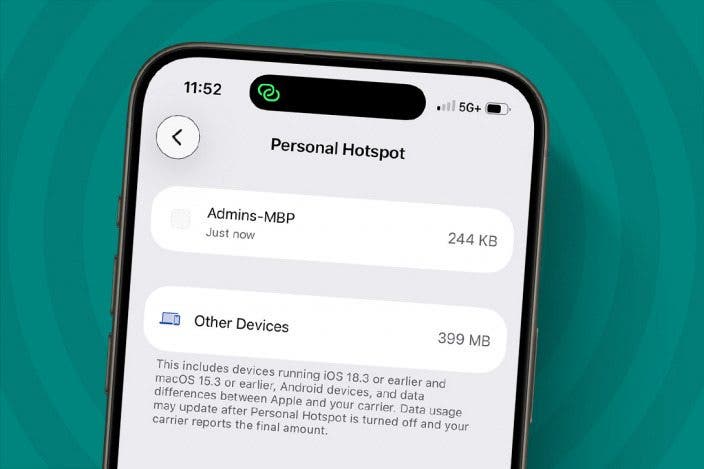
You can see which devices are connected to your hotspot currently, as well as how much data has been used. Here’s how to see and remove people from your iPhone’s personal hotspot:
- Open the Settings app, and tap Personal Hotspot.

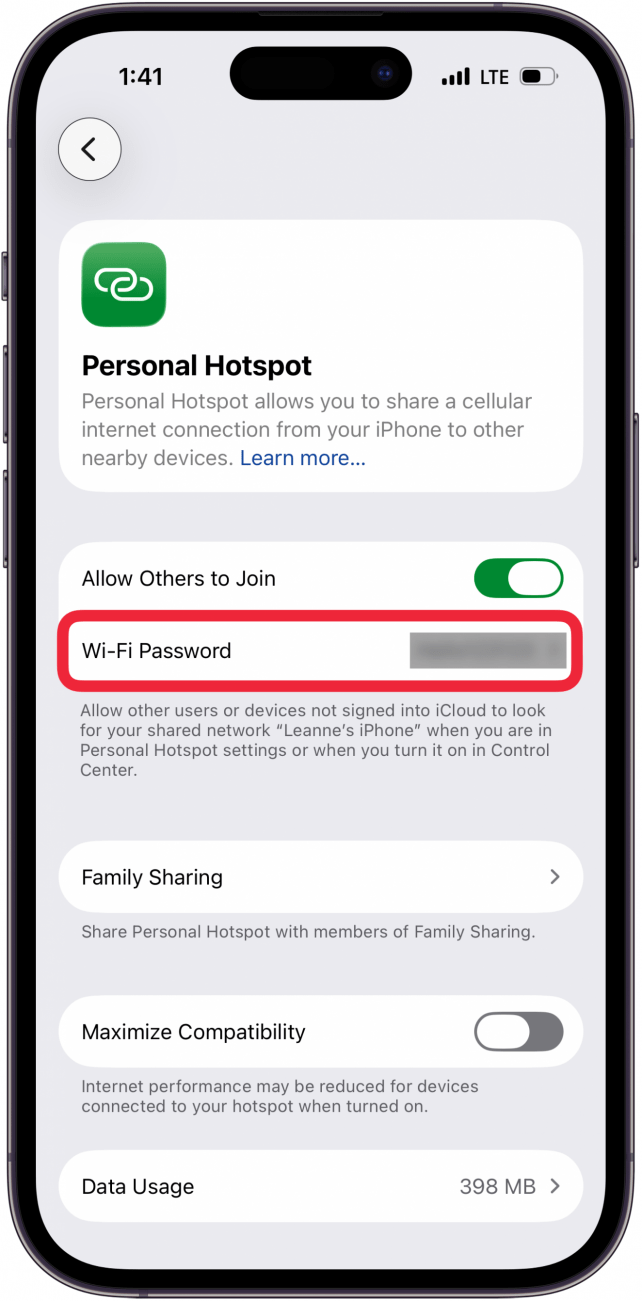
- Tap the toggle next to Allow Others to Join to turn it on and activate your hotspot.

- Tap Wi-Fi password to change the password if you haven’t already. In addition to being good practice, this will prevent anyone you don't want from joining your hotspot after you kick them off.
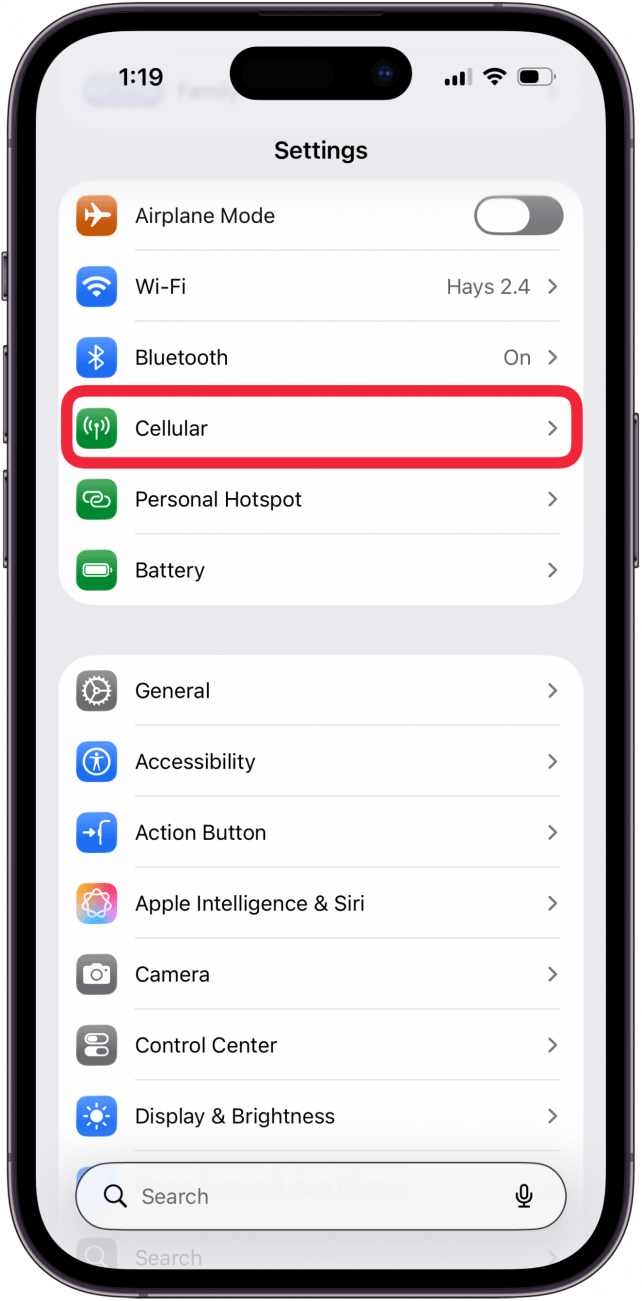
- Once a device is connected to your hotspot, go into Settings and tap Cellular.
- Tap Scroll down to the Cellular Data section, and tap Show All.

- Scroll down and tap Personal Hotspot. If you have a hard time finding it, use the Search Bar like I did.

- Here, you can see any devices currently connected to your hotspot.

- If you want to know how to remove a device from your iPhone hotspot, you will have to turn it off. To do this, swipe down from the upper right to open the Control Center.
- Tap the Hotspot icon.

- Your hotspot icon will be gray and say "Off" when disconnected.

That’s how to remove hotspot-connected devices on your iPhone. If you are concerned about others continuing to use your hotspot data the next time you turn it on, I recommend changing the password, as seen in step three. Next, find out how to change your hotspot name on iPhone.
More On: iPhone Cellular Data

Every day, we send useful tips with screenshots and step-by-step instructions to over 600,000 subscribers for free. You'll be surprised what your Apple devices can really do.

Rhett Intriago
Rhett Intriago is a Feature Writer at iPhone Life, offering his expertise in all things iPhone, Apple Watch, and AirPods. He enjoys writing on topics related to maintaining privacy in a digital world, as well as iPhone security. He’s been a tech enthusiast all his life, with experiences ranging from jailbreaking his iPhone to building his own gaming PC.
Despite his disdain for the beach, Rhett is based in Florida. In his free time, he enjoys playing the latest games, spoiling his cats, or discovering new places with his wife, Kyla.
 Rachel Needell
 Rhett Intriago
 Leanne Hays
 Olena Kagui

 Amy Spitzfaden Both