How to Scan on iPhone Using Notes App

A lifelong tech enthusiast, with experiences ranging from jailbreaking his iPhone to building his own gaming PC, Rhett specializes in maintaining privacy in a digital world and iPhone security.
Learn More A lifelong tech enthusiast, with experiences ranging from jailbreaking his iPhone to building his own gaming PC, Rhett specializes in maintaining privacy in a digital world and iPhone security.
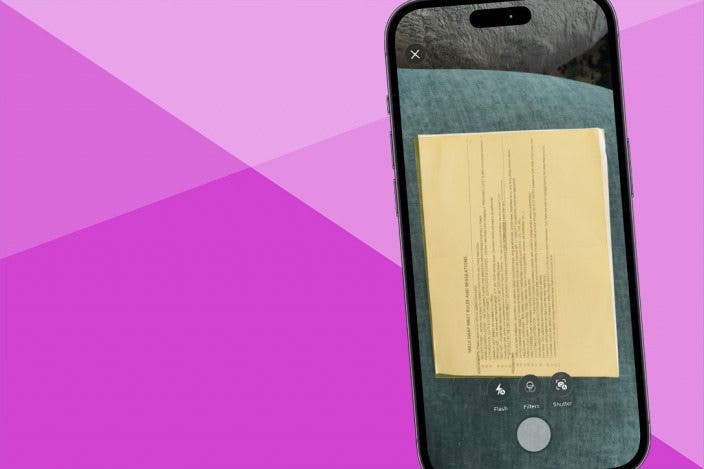
Learn MoreThis nifty trick is an excellent way to make a digitized copy of any physical document that you can save to your phone, or quickly send via messages, email, or AirDrop, depending on your needs. In this tip, we’ll cover how to scan on iPhone using the Notes app.
Why You’ll Love This Tip:
- Scan and store documents in your iPhone’s Notes app.
- Easily convert paper documents to PDF files for sharing over email, text, etc.
- This can be better than taking a picture of a document, because the scan function automatically adjusts your photo settings to be optimized for a printed document.
How to Scan a Document on iPhone
System Requirements
This tip was performed on an iPhone 17 Pro Max running iOS 26.6. Find out how to update to the latest version of iOS.
The scanning feature isn’t just a photograph of a piece of paper. It actually uses special software to flatten and standardize the pages and uses Live Text to allow you to physically copy and paste words or numbers from the document into any text field. To discover more iPhone hidden gems, don't forget to check out our free Tip of the Day newsletter. Now, here’s how to scan documents on iPhone:
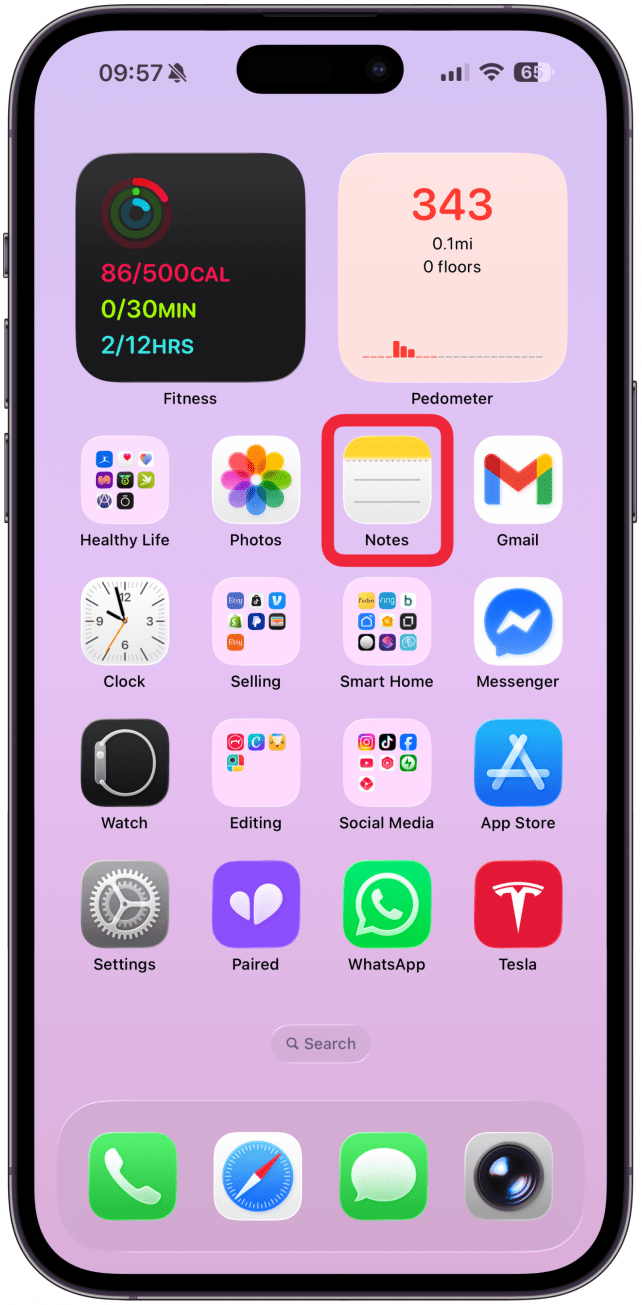
- On your iPhone, open Notes.
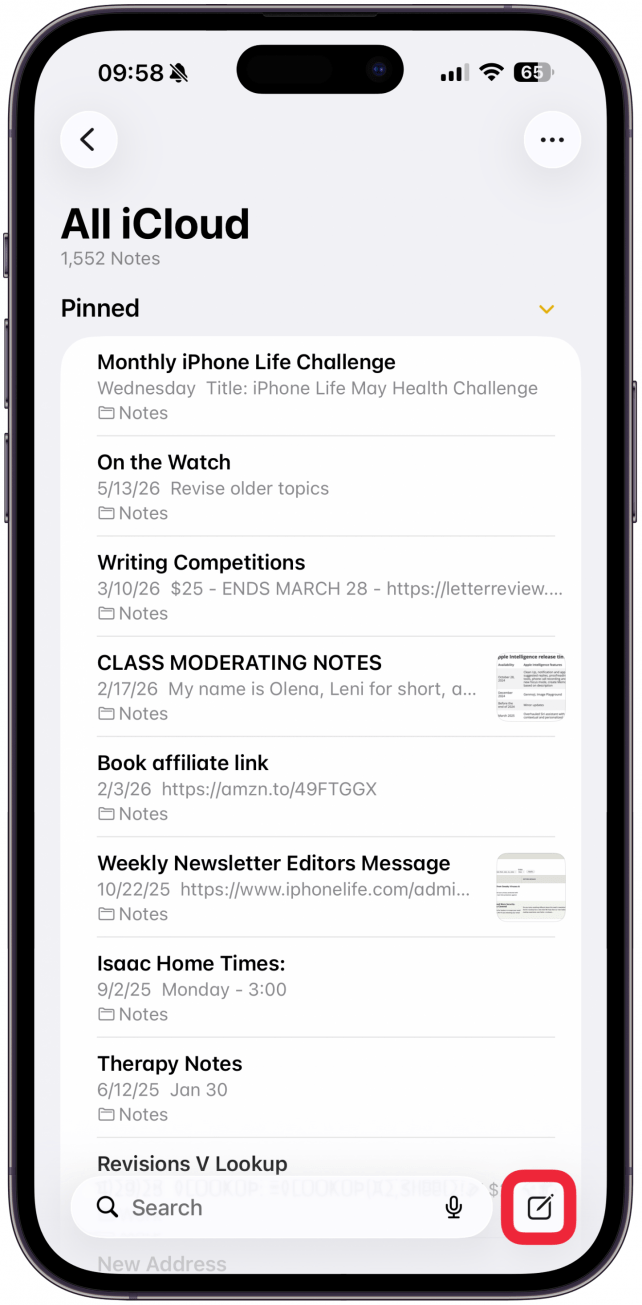
- Open a new note by tapping the New Note button in the bottom right or open an existing note.
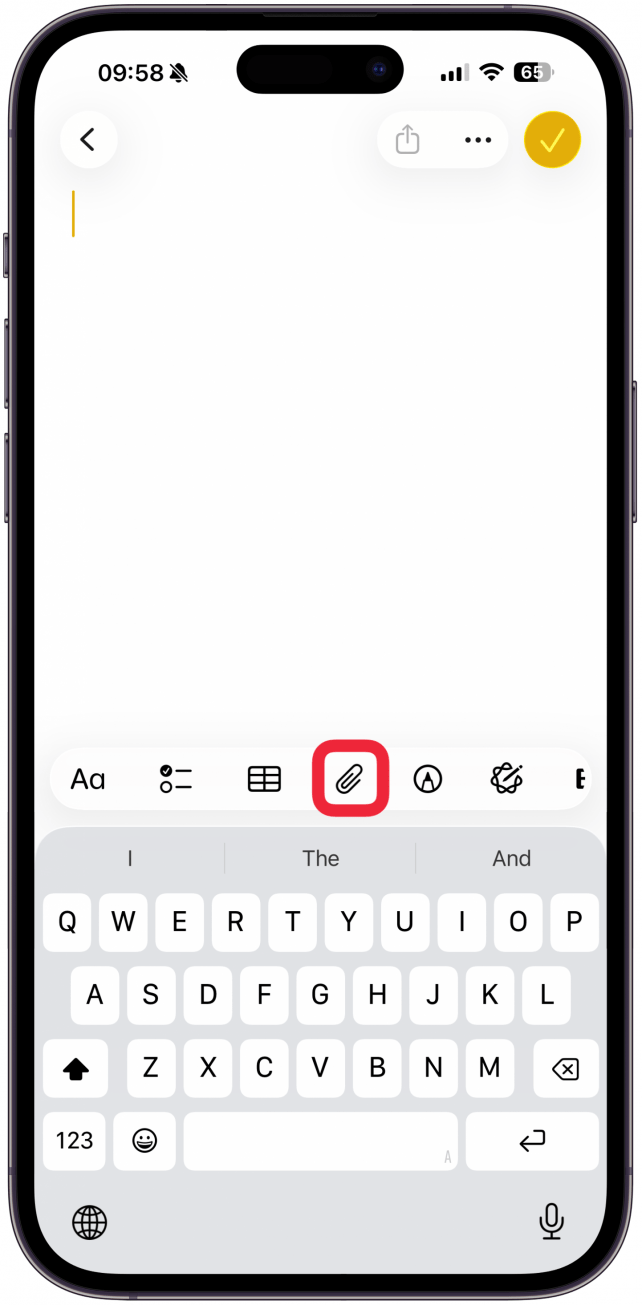
- Tap the Attachment icon.
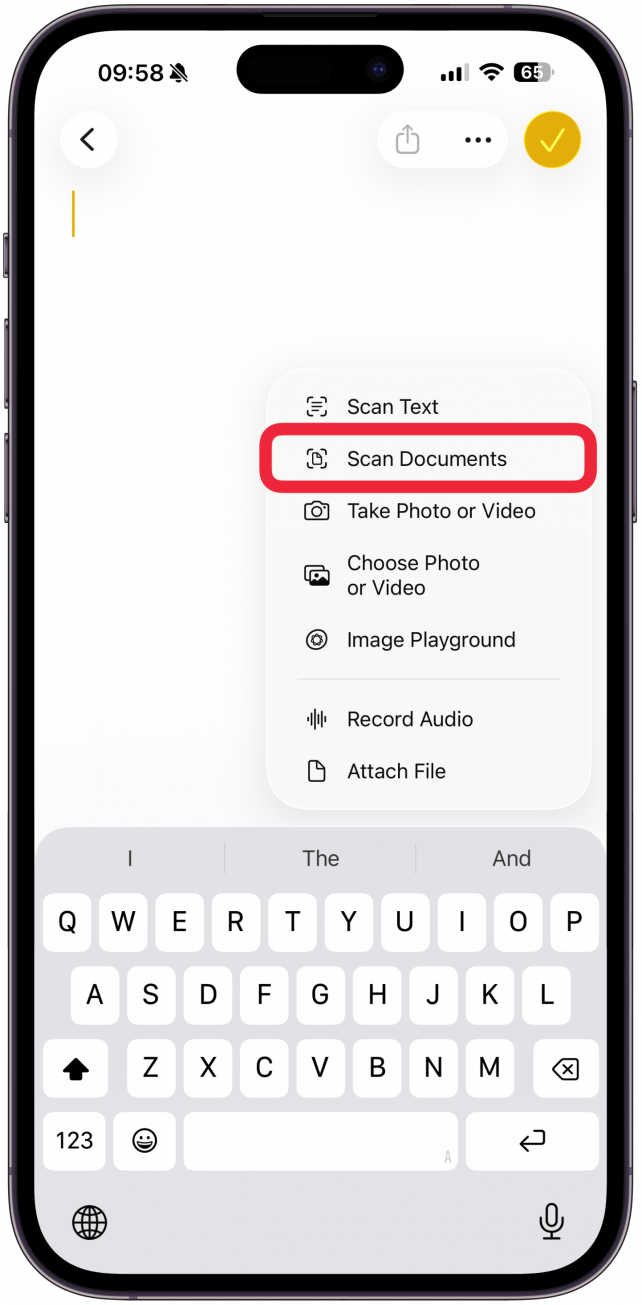
- Tap Scan Documents.
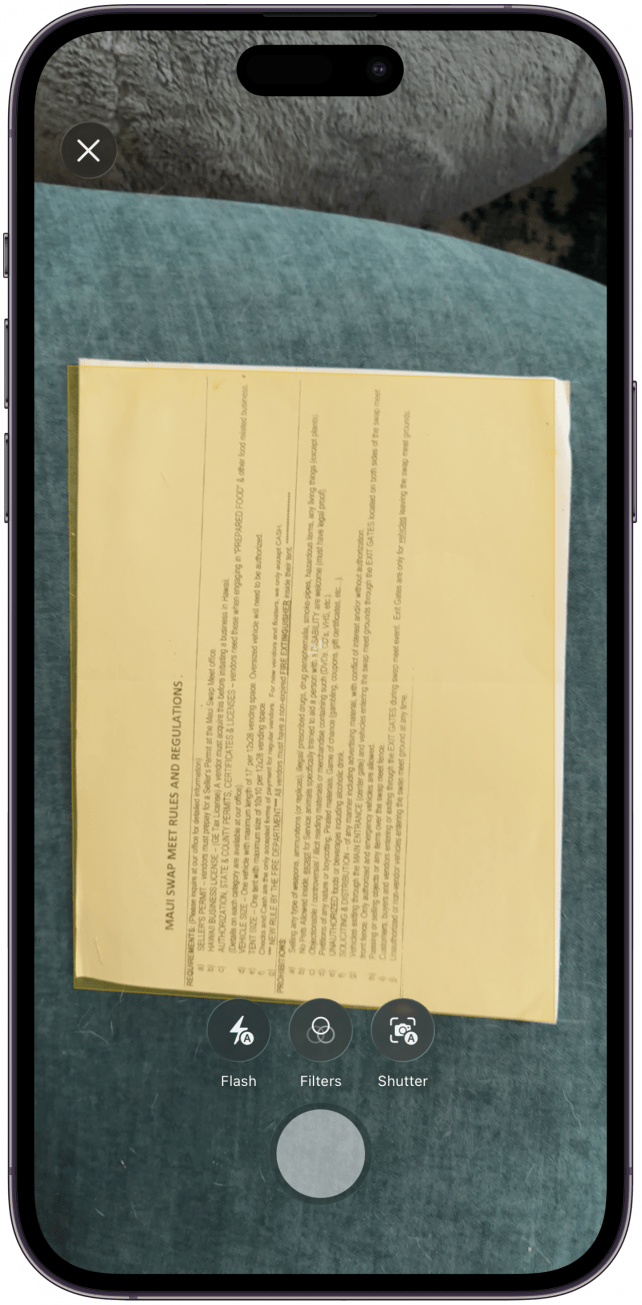
- Position the document so that it is entirely in view and the camera will automatically take the photo.
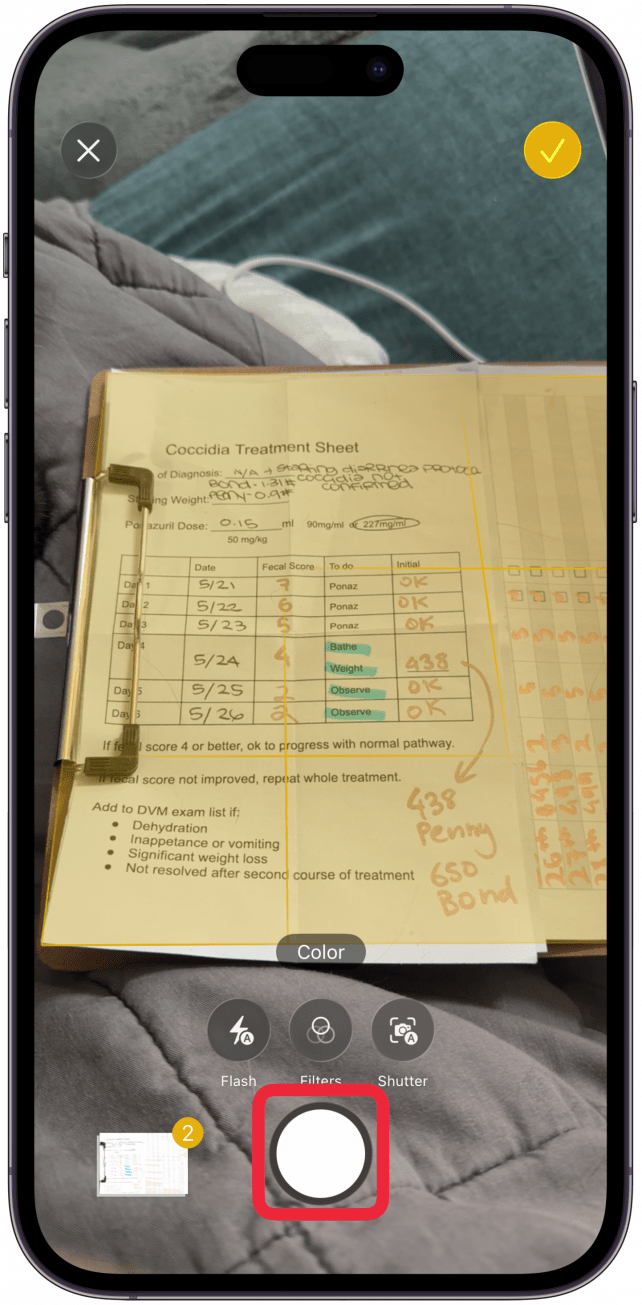
- You can also take the photo manually by pushing the shutter button.
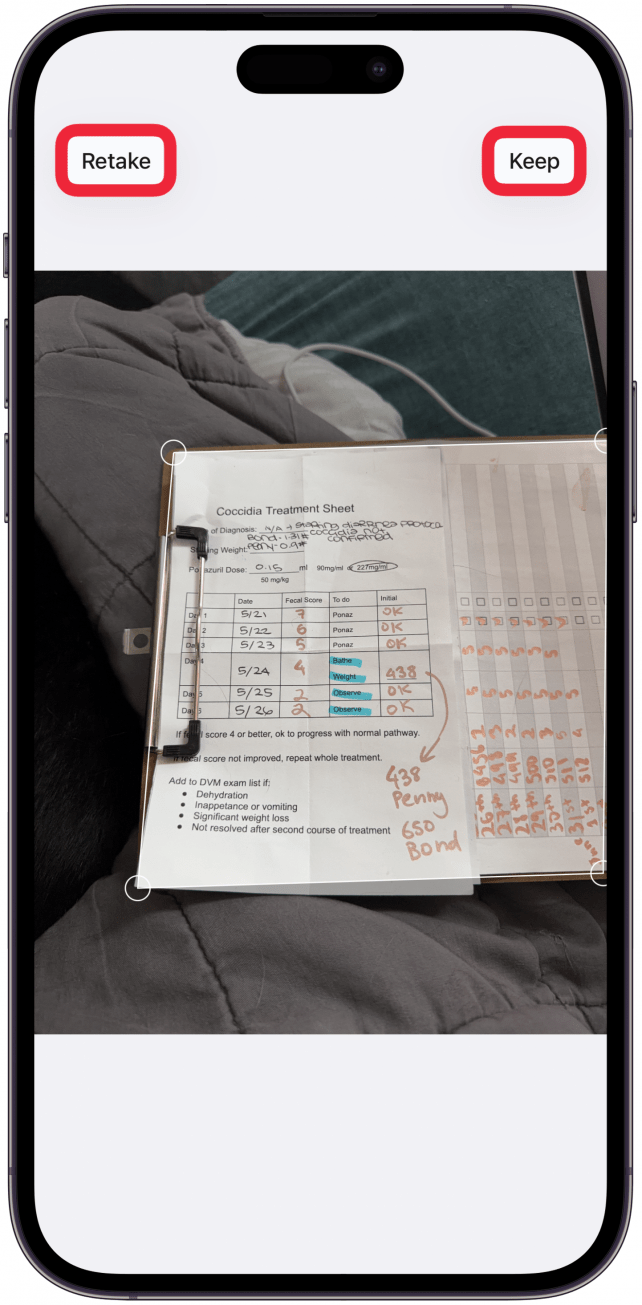
- If you do it manually, you'll see the option to Keep the scan or Retake if it is blurry or cut off.
- You can continue scanning by repeating the steps above. Someimes you need to move the camera completely away from your document or it will keep automatically taking photos. Tap Save.
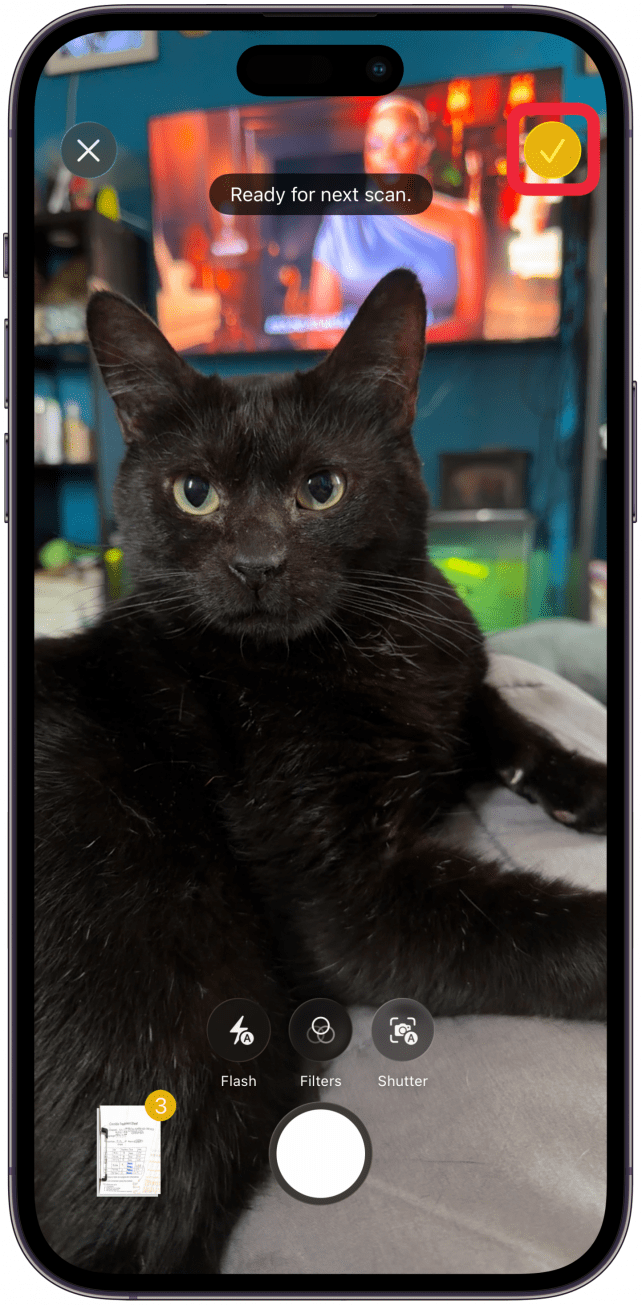
- To review your scans, tap the Gallery icon.
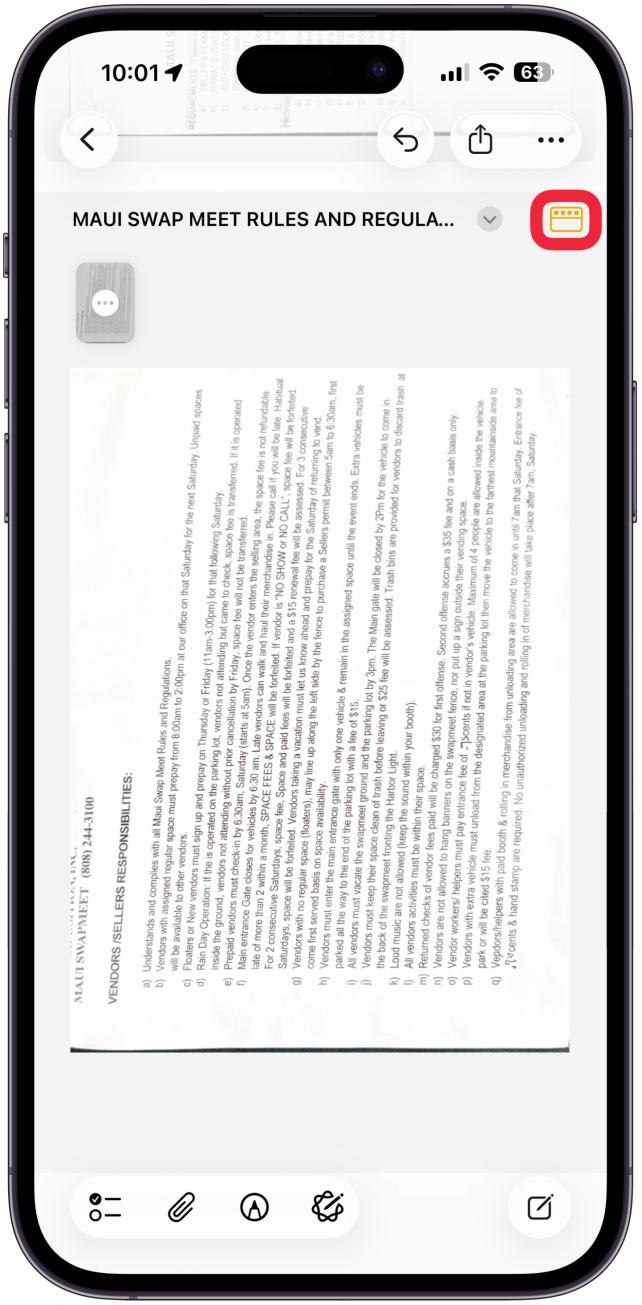
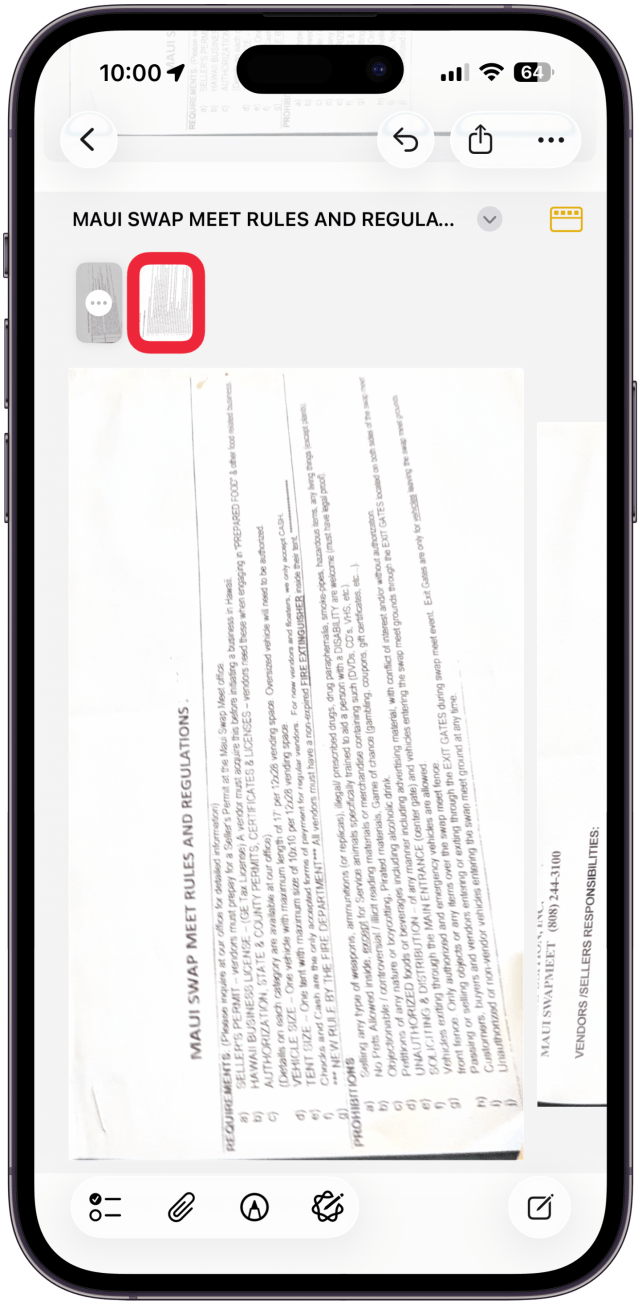
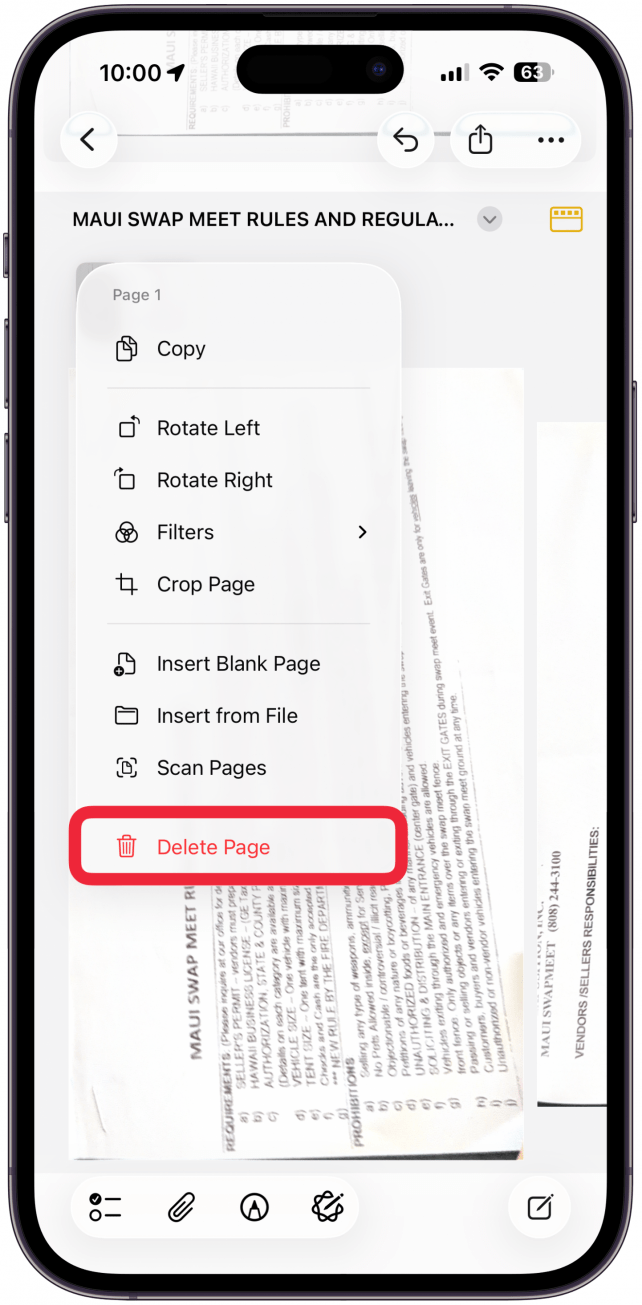
- Because the pictures take automatically, you may accidentally get a picture you didn't want to save. To delete a scan, tap the thumbnail for the image you want to delete.
- Tap the more icon in the middle of the thumbnail.
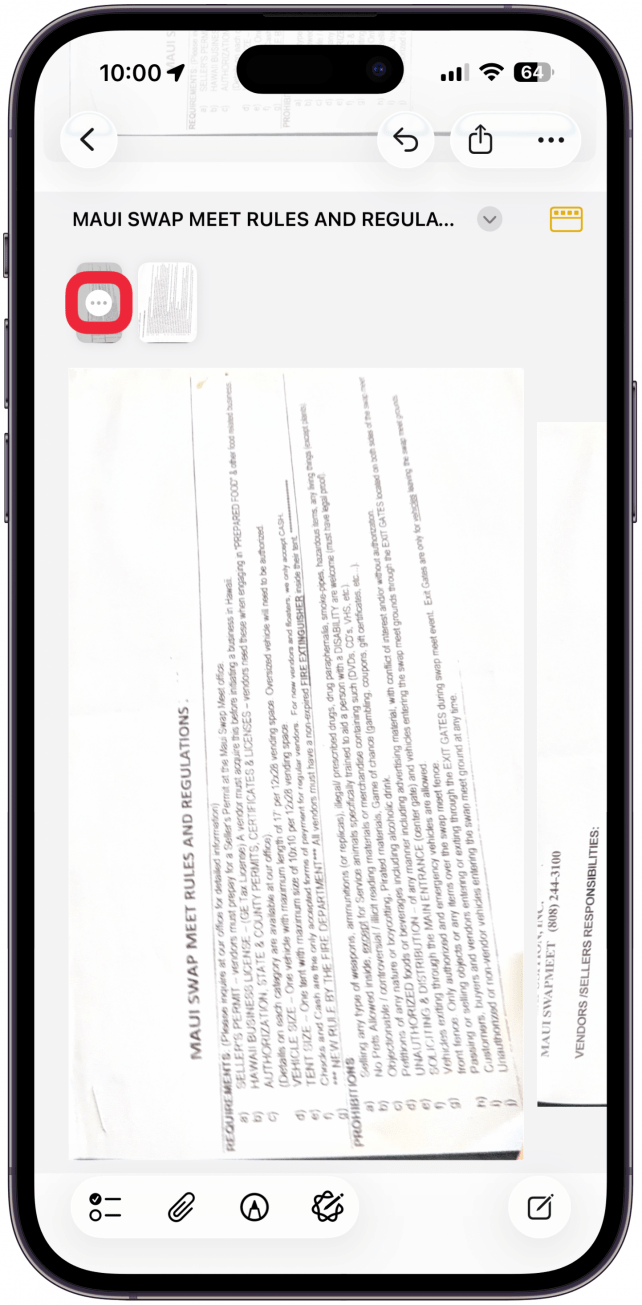
- From the dropdown menu, tap Delete Page.
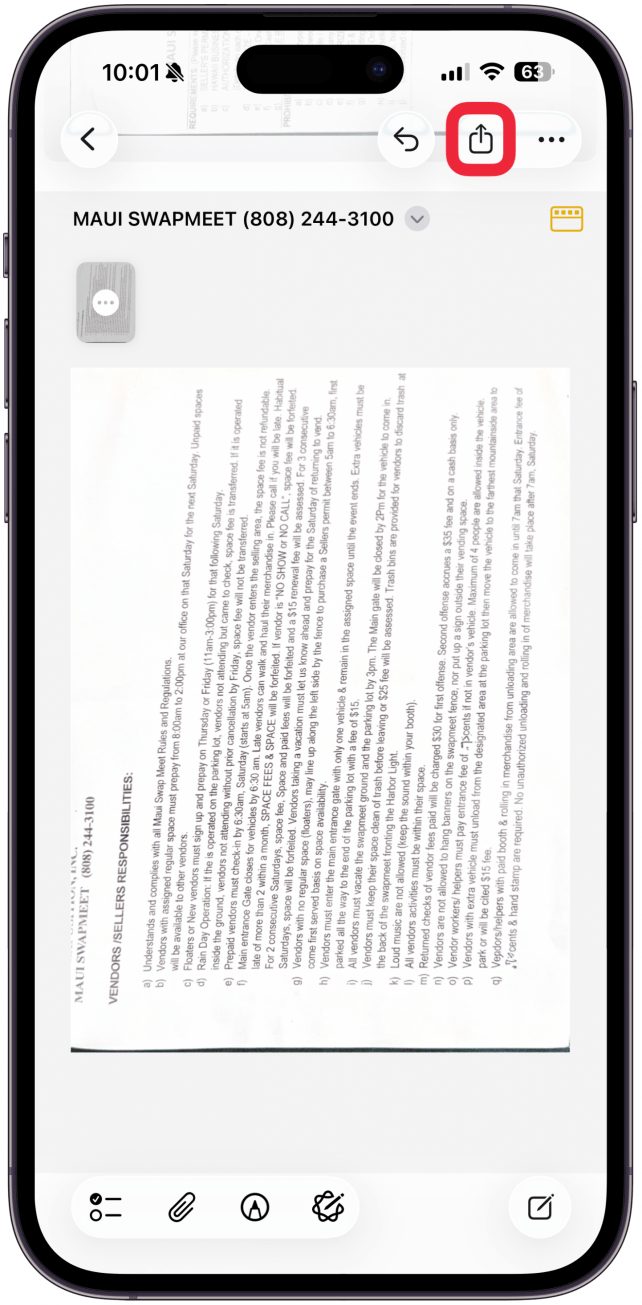
- If you want to send your scanned pages, tap Share button in the top right corner.
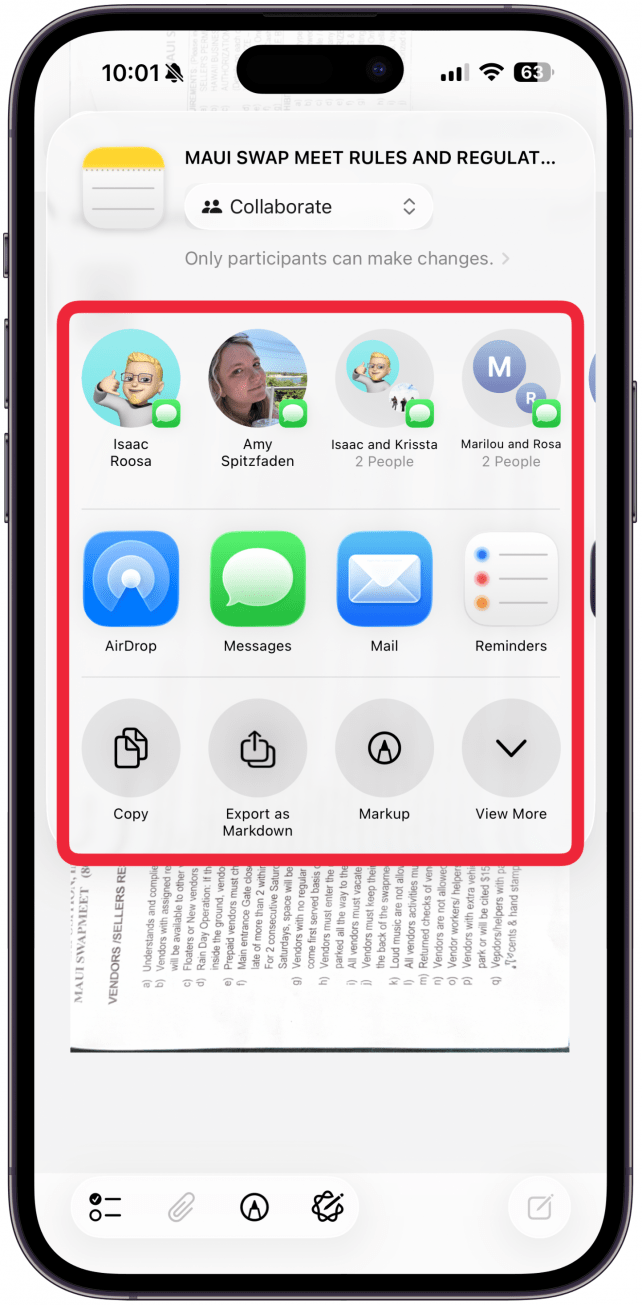
- From here, you can choose where and how you’d like to share your scanned image.
And that’s how to scan with iPhone's Notes app! Being able to scan a documents with iPhone and store them into my Notes app, with the addition of the built-in password protection already offered by Notes, is the perfect way to eliminate traditional filing systems and keep all my important documents safe and in one place. If you'd rather scan document with iPhone's Files app, you can do that too.

Every day, we send useful tips with screenshots and step-by-step instructions to over 600,000 subscribers for free. You'll be surprised what your Apple devices can really do.

Rhett Intriago
Rhett Intriago is a Feature Writer at iPhone Life, offering his expertise in all things iPhone, Apple Watch, and AirPods. He enjoys writing on topics related to maintaining privacy in a digital world, as well as iPhone security. He’s been a tech enthusiast all his life, with experiences ranging from jailbreaking his iPhone to building his own gaming PC.
Despite his disdain for the beach, Rhett is based in Florida. In his free time, he enjoys playing the latest games, spoiling his cats, or discovering new places with his wife, Kyla.
 Olena Kagui
 Susan Misuraca
 Rhett Intriago

 Sarah Kingsbury
 Rachel Needell

 Leanne Hays




 David Averbach