How to Change iPhone Lock Screen Shortcuts

With over 10 years of experience in publishing, Amy specializes in Apple news and rumors, health and fitness tech, and parenting in the digital age.
Learn More With over 10 years of experience in publishing, Amy specializes in Apple news and rumors, health and fitness tech, and parenting in the digital age.
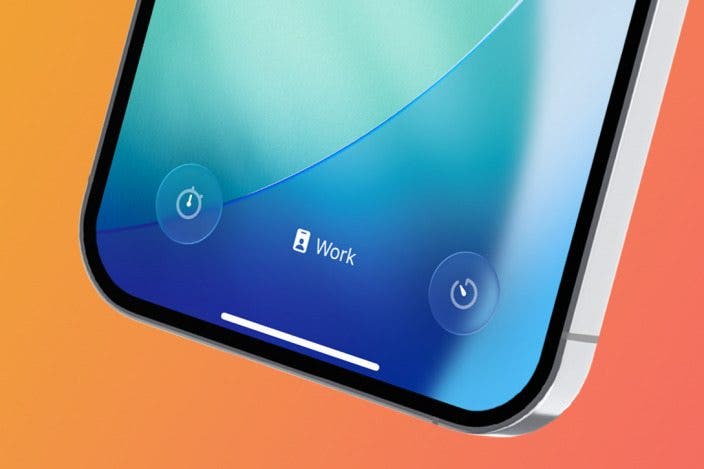
Learn MoreIf you've ever wanted to customize the shortcut buttons on your Lock Screen, you're in luck! You can now swap out your iPhone flashlight shortcut or camera shortcut to pretty much any shortcut of your choosing. Here's how to change Lock Screen shortcuts and have your favorite activity or app launch with just a touch.
Why You'll Love This Tip
- Swap out the default flashlight and camera controls for other shortcuts, like the timer or alarm app.
- Keep your favorite shortcuts right on your Lock Screen.
- Access apps or actions quickly without unlocking your iPhone.
How to Change Your iPhone Lock Screen Shortcut
System Requirements
This tip was performed on an iPhone 15 Pro running iOS 26.2. Find out how to update to the latest version of iOS.
With the addition of the Action Button and now Camera Control buttons, the usefulness of having your camera and flashlight as your Lock Screen shortcuts is rapidly waning. Fortunately, you can swap these shortcuts out for different options.
It's important to note that the shortcut will only be for that Lock Screen. If you have multiple Lock Screens, the others will have the flashlight and camera defaults unless you manually change them. For more iPhone customization tips, check out our free Tip of the Day newsletter. Here's how to swap out the Lock Screen shortcut on your iPhone.
- Long-press on your Lock Screen.
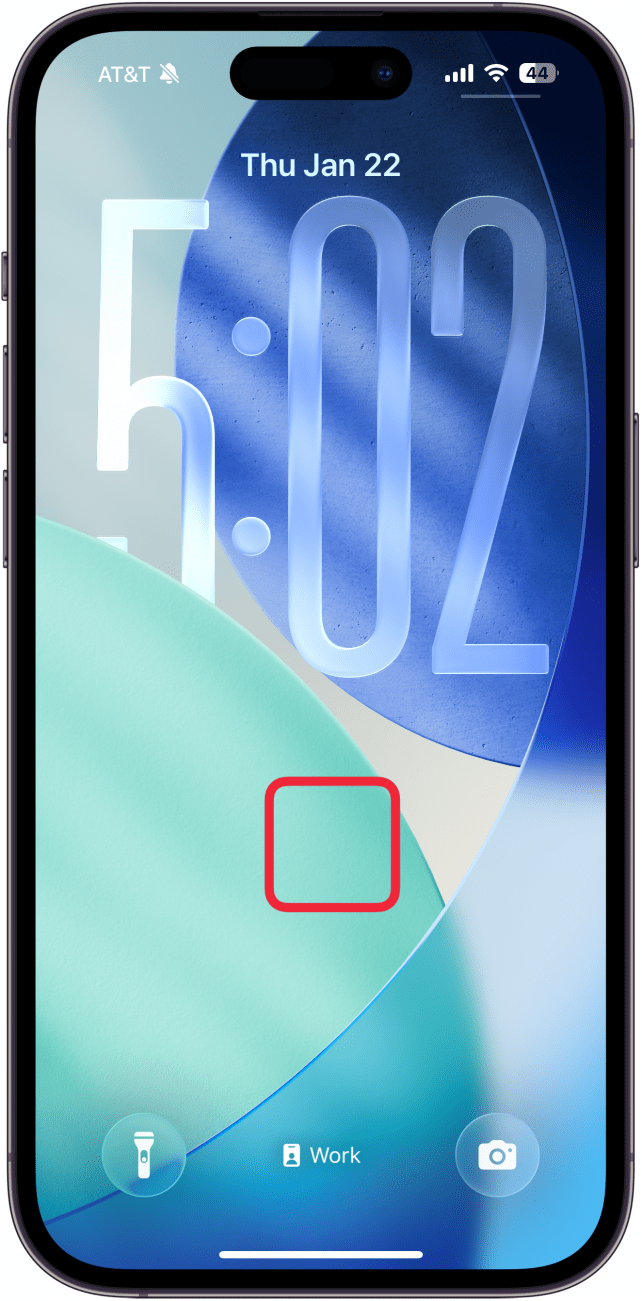
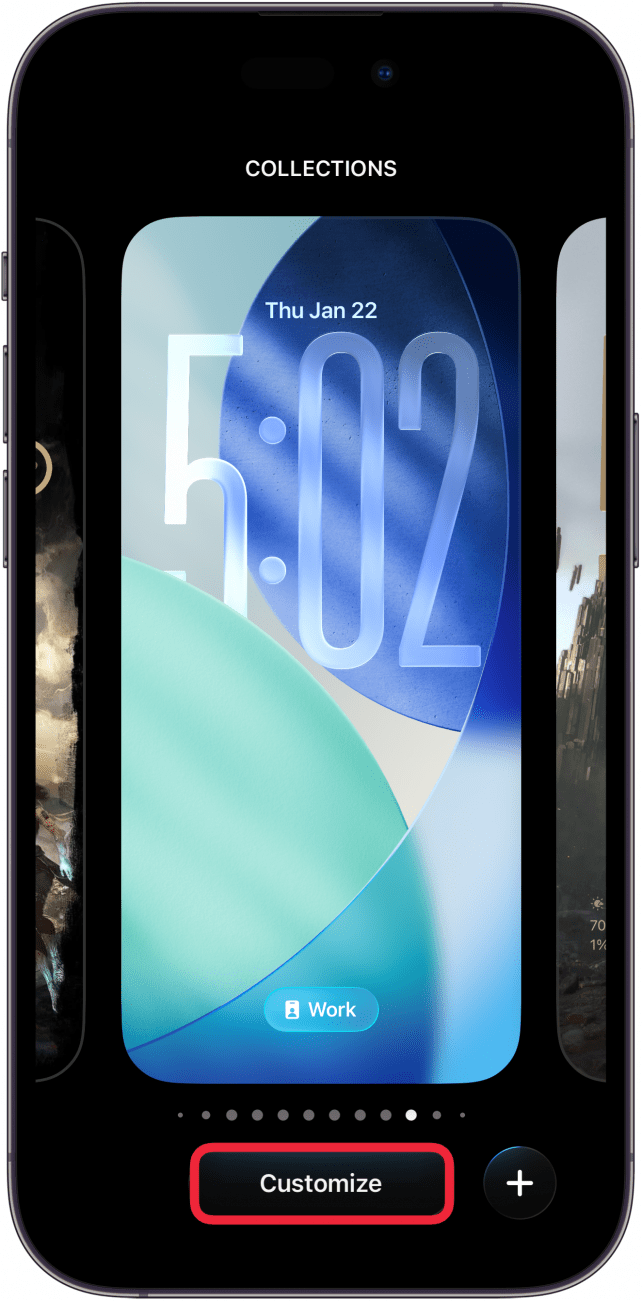
- Tap Customize.
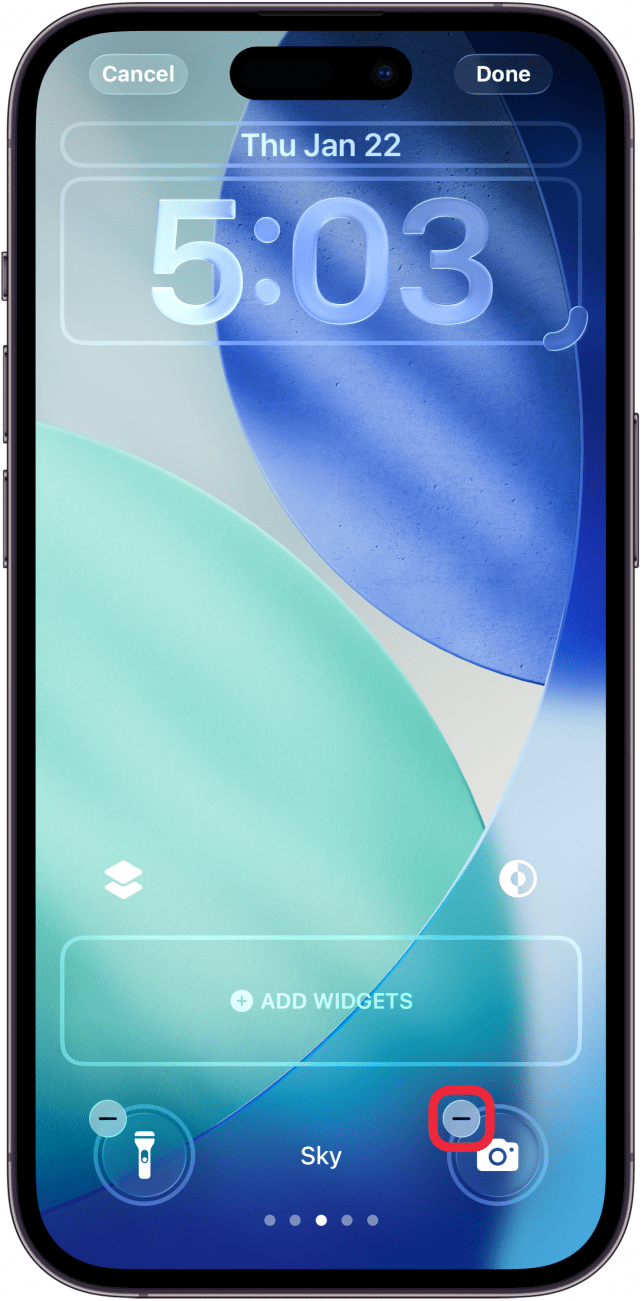
- Tap the minus symbol on the top left corner of the shortcut you want to replace.
- Tap the plus icon where the shortcut just was.
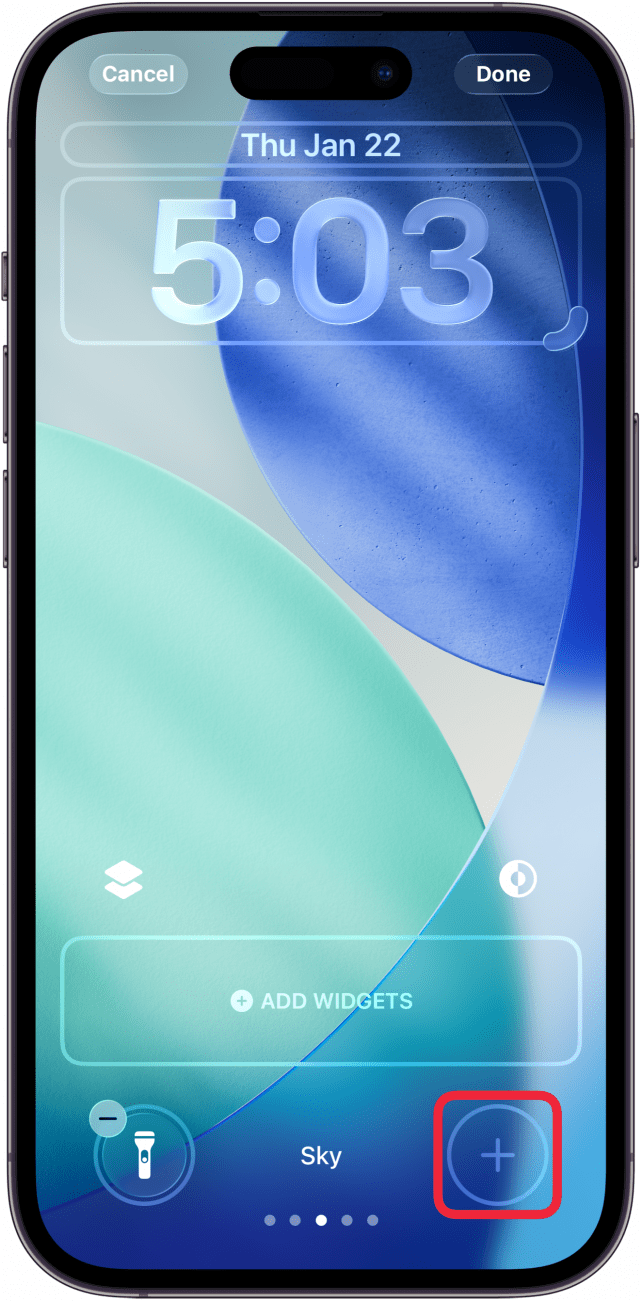
- Scroll through your new shortcut options and tap the shortcut you want to add.
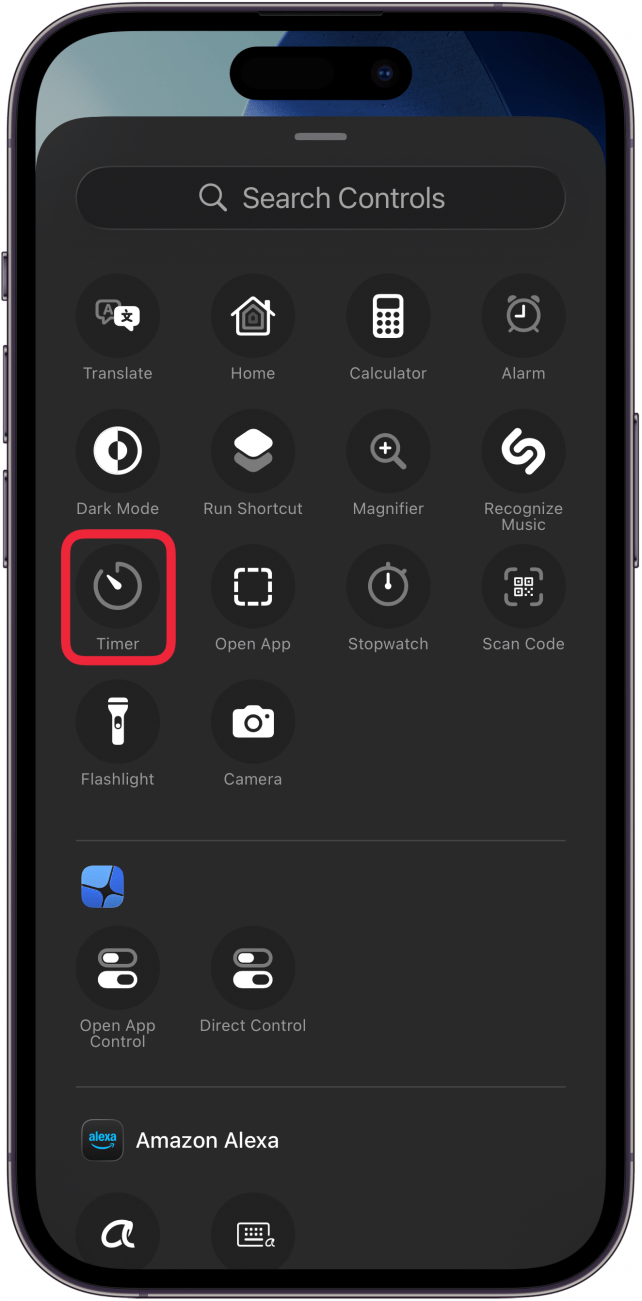
- Tap Done to finalize your Lock Screen.
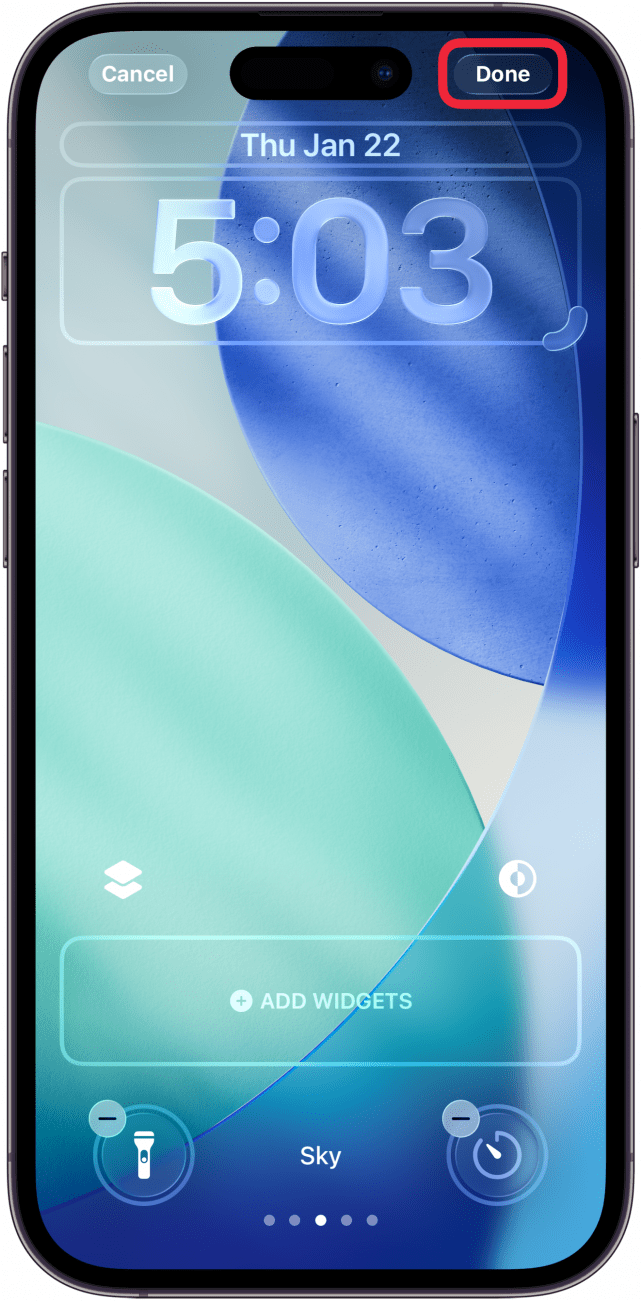
- You can now tap that iPhone Lock Screen shortcut to launch the new app or function you selected.
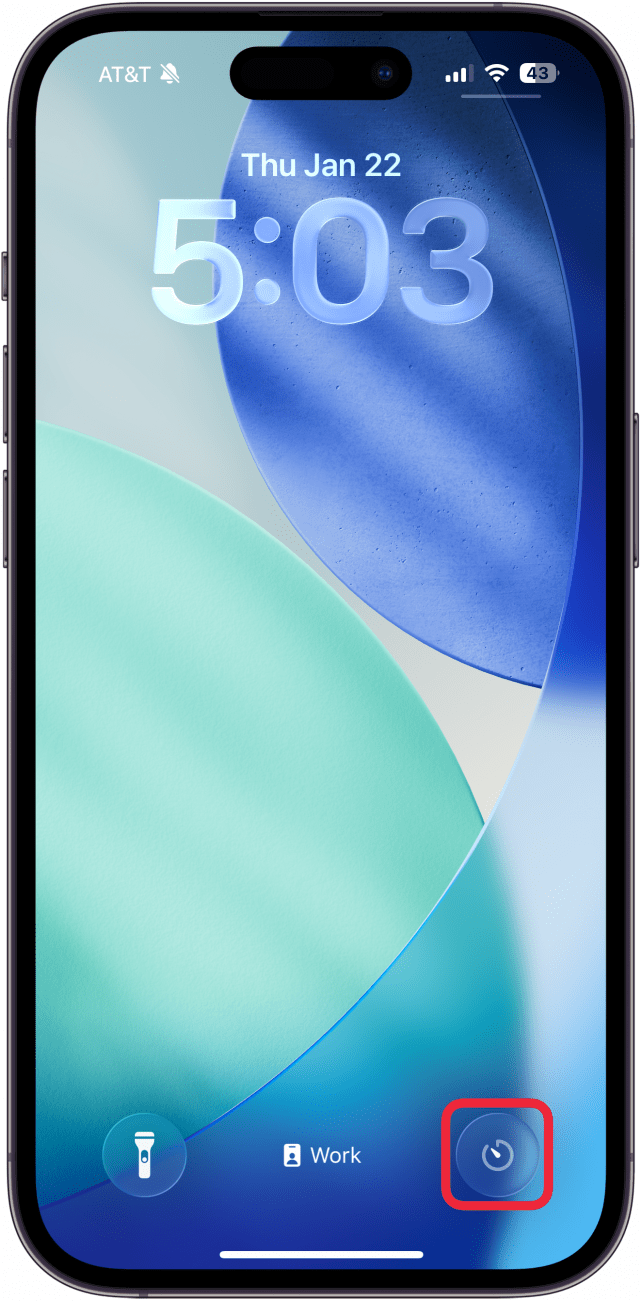
That's how to change shortcuts on iPhone Lock Screen. These can easily be swapped out by following this same step procedure each time. Remember, you'll have to do it individually for each Lock Screen.

Every day, we send useful tips with screenshots and step-by-step instructions to over 600,000 subscribers for free. You'll be surprised what your Apple devices can really do.

Amy Spitzfaden Both
Amy Spitzfaden-Both is the Managing Editor for iPhone Life magazine and an award-winning novelist, with over 10 years of experience in the publishing industry. She specializes in Apple news and rumors, health and fitness tech, and parenting in the digital age. She graduated from MIU with a BA in Literature and Writing.
Amy lives in New Hampshire with her husband and daughter. When she’s not writing or glued to her iPhone, she enjoys hiking, traveling, and creating her own tea blends.

 Sean Dugan
 Olena Kagui
 Rhett Intriago

 Rachel Needell
 Amy Spitzfaden Both
 Leanne Hays