iPhone Going Straight to Voicemail? Fix It Fast!

What To Know
- If incoming iPhone calls are going straight to voicemail, make sure Do Not Disturb and Airplane Mode are turned off.
- Turning off the Screen Unknown Callers feature can also fix iPhone going straight to voicemail.
- If all else fails, you can reset your network settings to fix your calls going straight to voicemail.
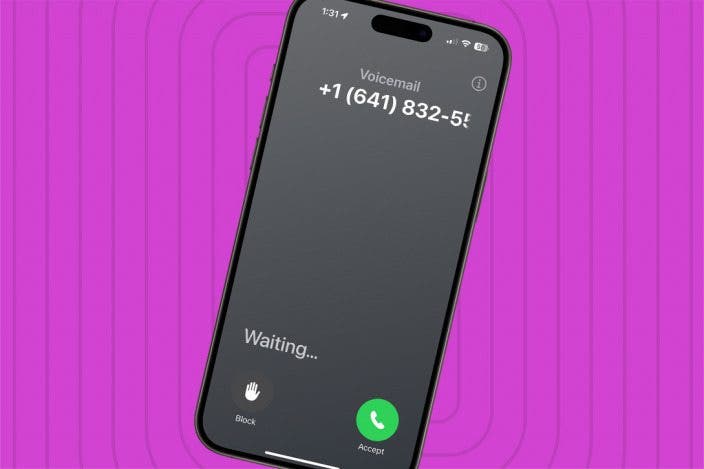
Why does a call go straight to voicemail without ringing? The culprit may be a setting such as Do Not Disturb, Focus modes, or Silence Unknown Callers. There are several more things to check if those settings aren't to blame. Here's how to stop iPhone calls going straight to voicemail on your iPhone.
System Requirements
The following steps were performed on an iPhone 16 running iOS 26. Find out how to update to the latest version of iOS.
Before trying any of the fixes below try the following steps: check to see if your iPhone is connected to headphones or another Bluetooth device., do an iOS update, if needed, and reboot your iPhone. Phone going straight to voicemail still? Read on.
Make Sure Airplane Mode Is Off
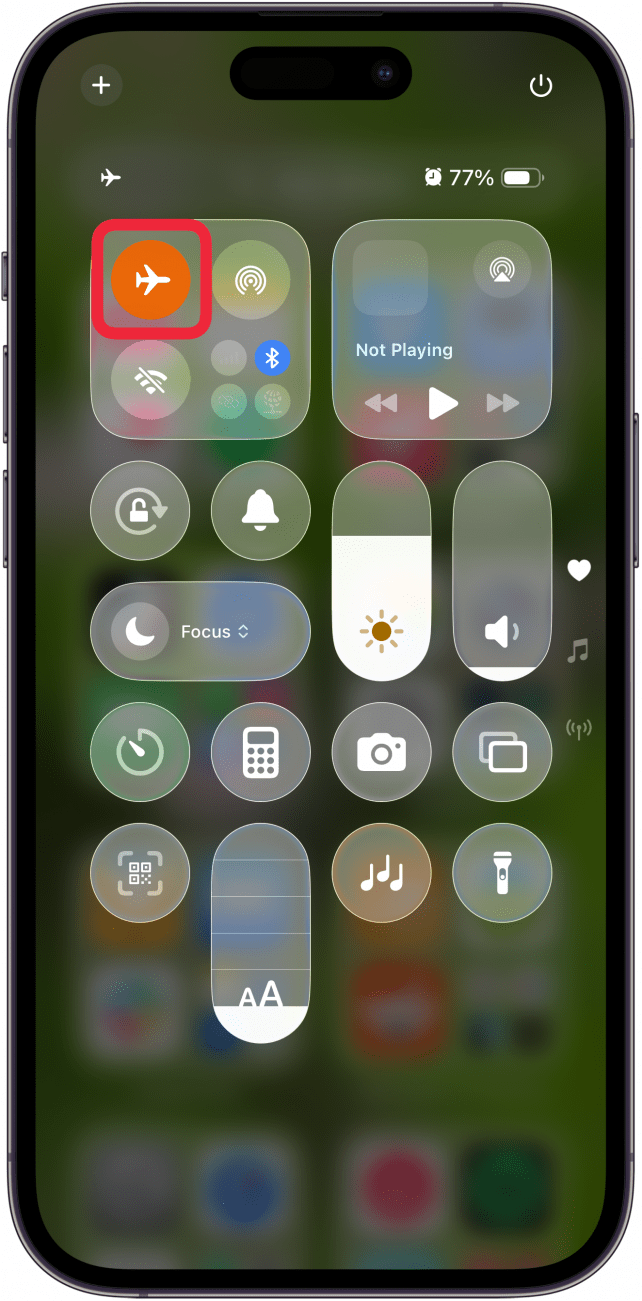
If your iPhone is going straight to voicemail, this is another easy fix. If Airplane Mode is turned on, you won't hear calls ring. The person calling you will hear your phone ring, and they'll be able to leave a voicemail. Here's how to stop calls going to voicemail in iPhone by checking Airplane Mode:
- Open the Control Center by swiping down from the upper-right corner of your screen.
- If the Airplane Mode icon is orange, it means Airplane mode is turned on. Tap the icon to change it back to gray and turn Airplane mode off. Even if Airplane mode isn't on, it's worth your time to turn it on, wait a minute, then turn it off again to reset your wireless features.
Phone calls going straight to voicemail still? Read on for more ways to fix your phone going straight to voicemail.
Turn Off Do Not Disturb & Check Focus Modes
If your iPhone goes straight to voicemail, check to see if Do Not Disturb or any other Focus Modes are turned on. It's easy to forget that Focus Modes like Do Not Disturb can direct all your calls to voicemail. A crescent moon icon on the top of your iPhone's screen indicates that your iPhone is in Do Not Disturb mode (other Focus Modes may use a different icon). Here's how to quickly disengage the Do Not Disturb feature and make sure your iPhone's Focus status isn't interfering with your phone calls.
- Open the Control Center.
- Tap the Focus Mode icon.
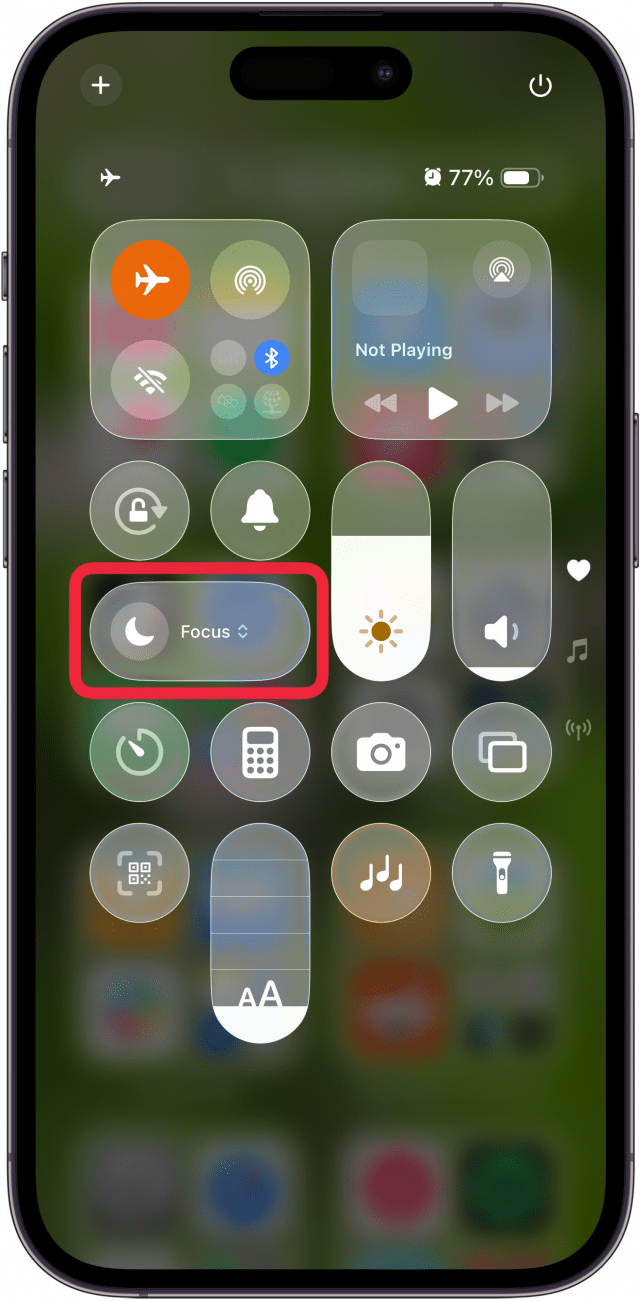
- Make sure Do Not Disturb is not on. If it is, tap it to turn it off.
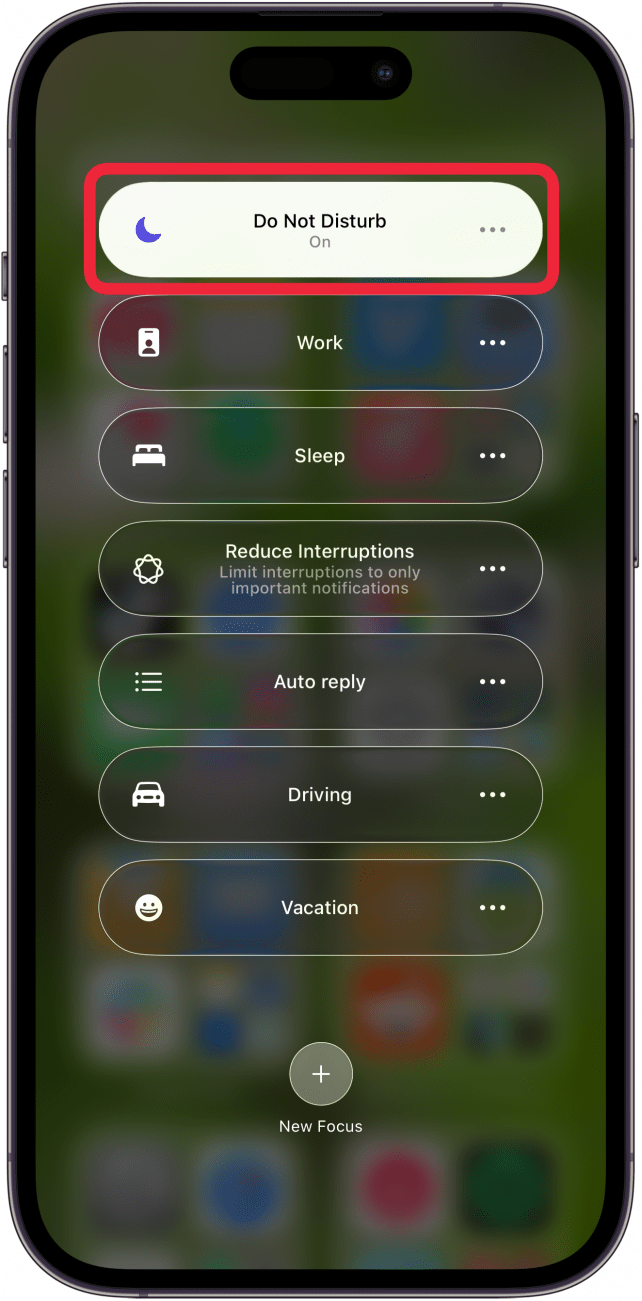
- If another Focus Mode is highlighted, tap the three dots in the highlighted Focus Mode.
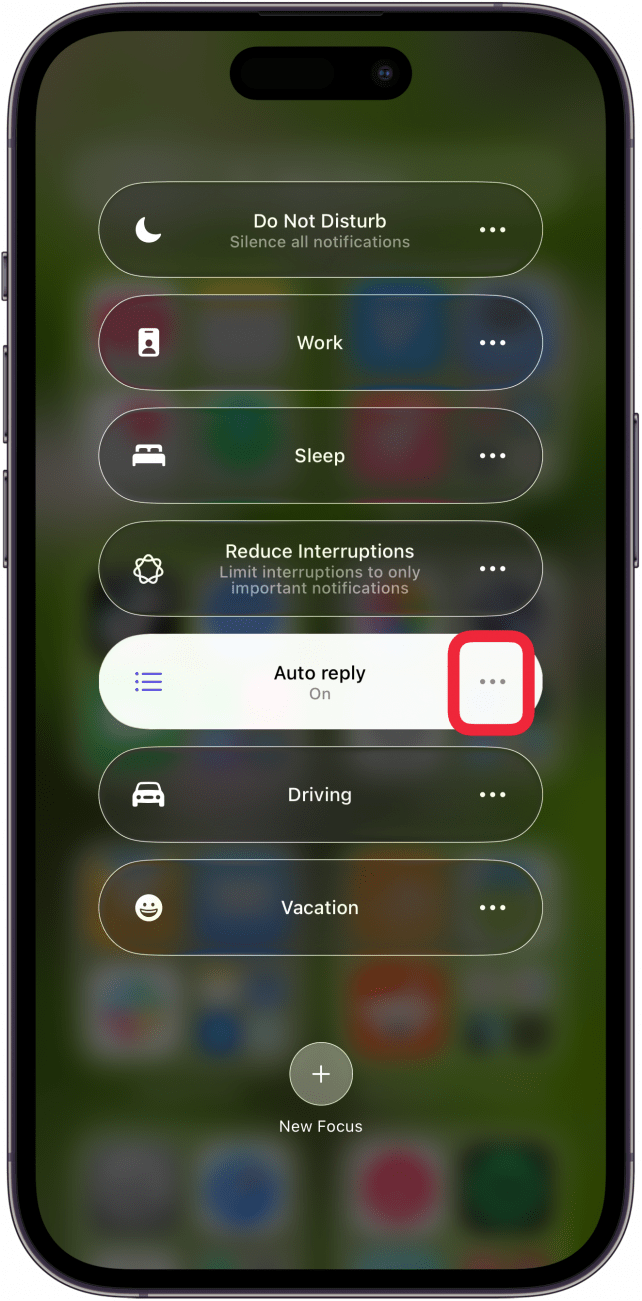
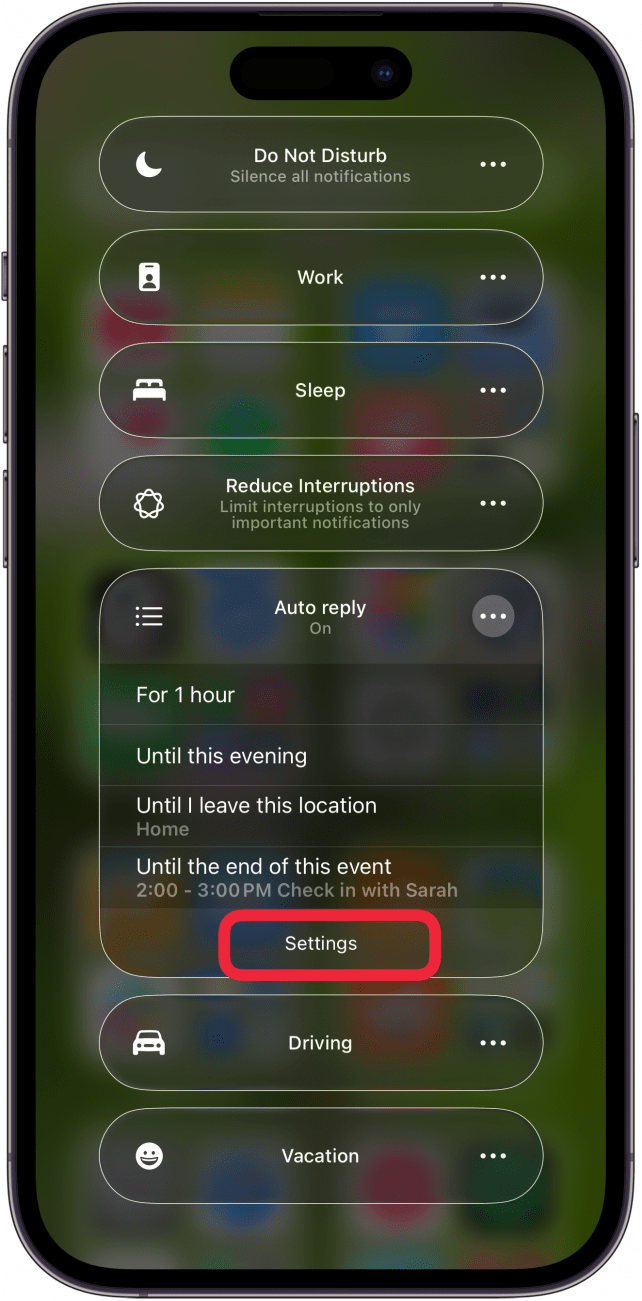
- Tap Settings.
- If you don't see the Phone icon under apps, tap Choose Apps.
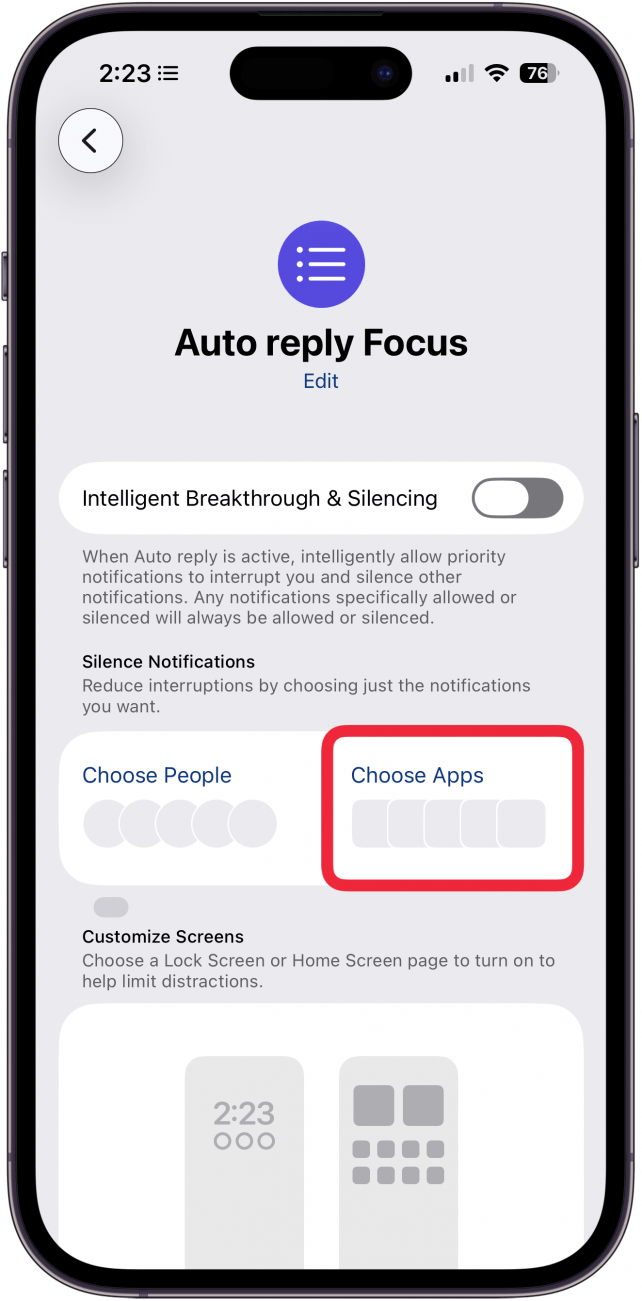
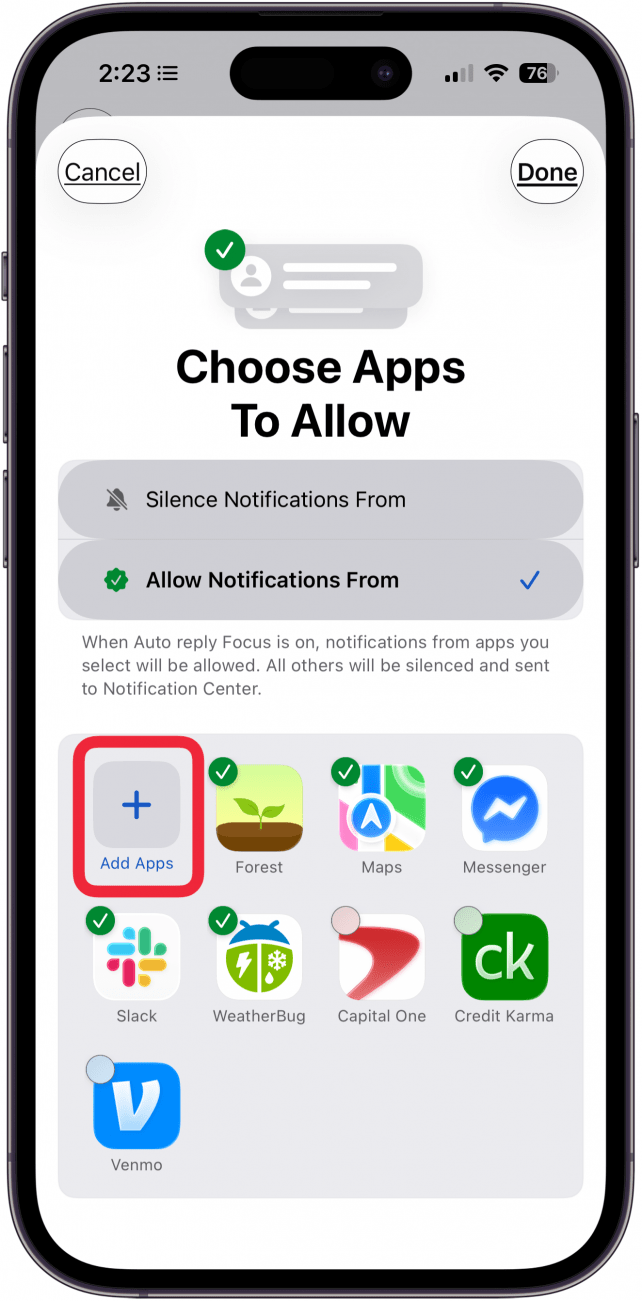
- If Allow Notifications From is checked, tap Add Apps.
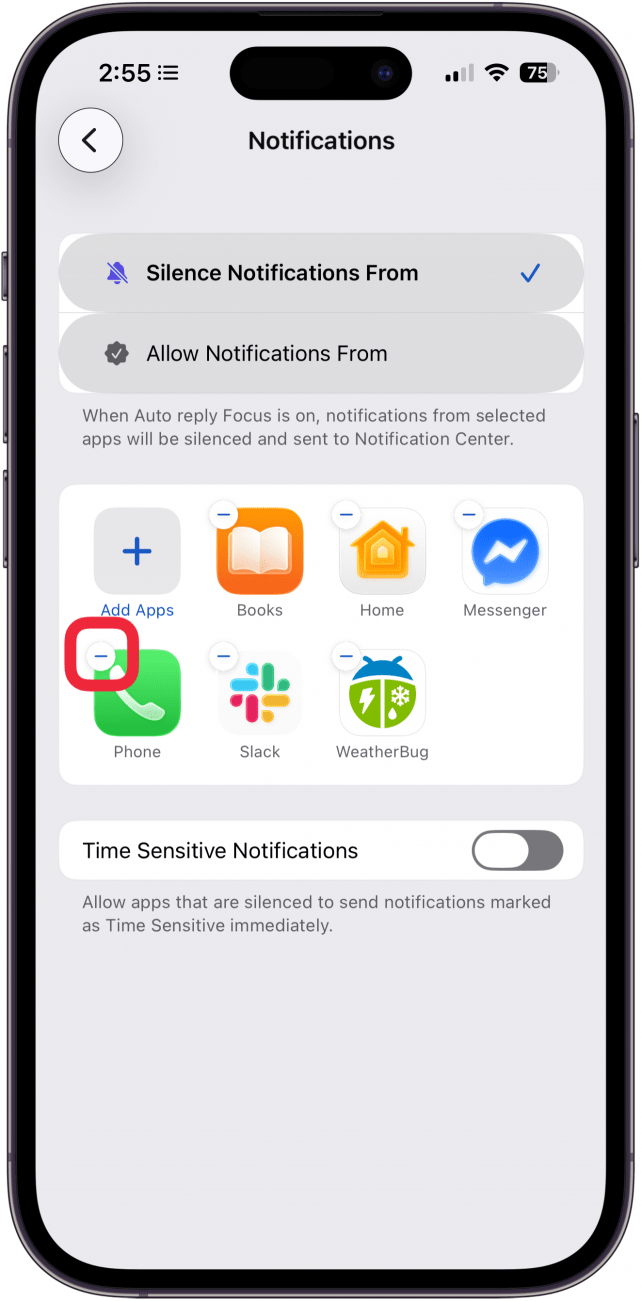
- If Silence Notifications From is checked, tap the minus icon on the Phone app.
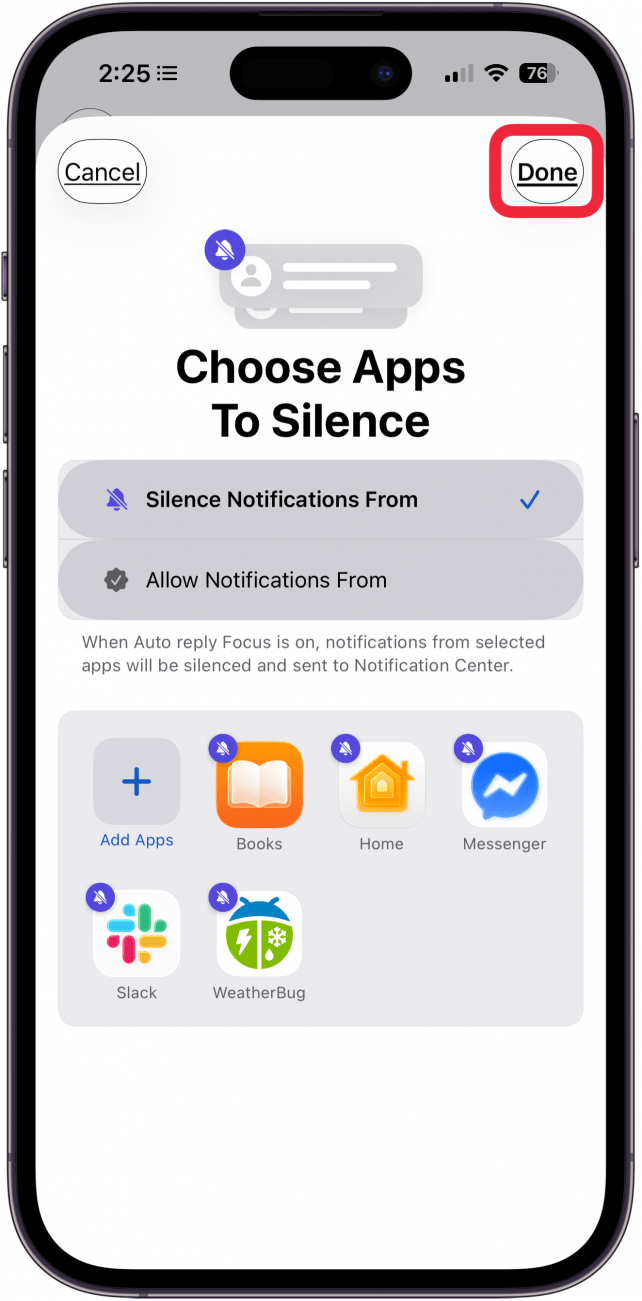
- Tap Done to finish.
Note
If you want to leave Do Not Disturb and/or Focus Modes on but want to allow phone calls from favorite contacts to go through, you can.
Are phone calls going straight to voicemail still? There are a few more things to try.
Turn Off Silence Unknown Callers
When every iPhone call goes straight to voicemail, the culprit is often the Silence Unknown Callers setting. It's great to silence unknown callers when you want to stop spam calls, but it can also lead to missing important calls. If you want to stop iPhone calls going straight to voicemail, here's how.
- Open the Settings app, then scroll down and tap Apps.
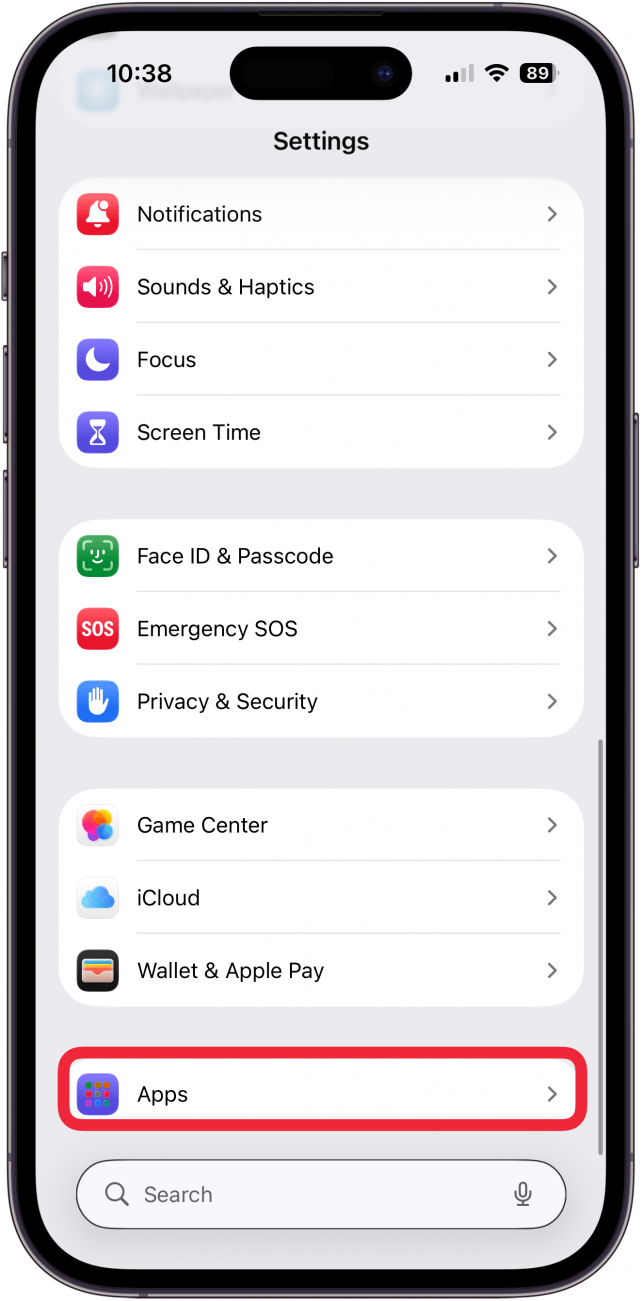
- Tap Phone.

- Tap Never under Screen Unknown Callers.
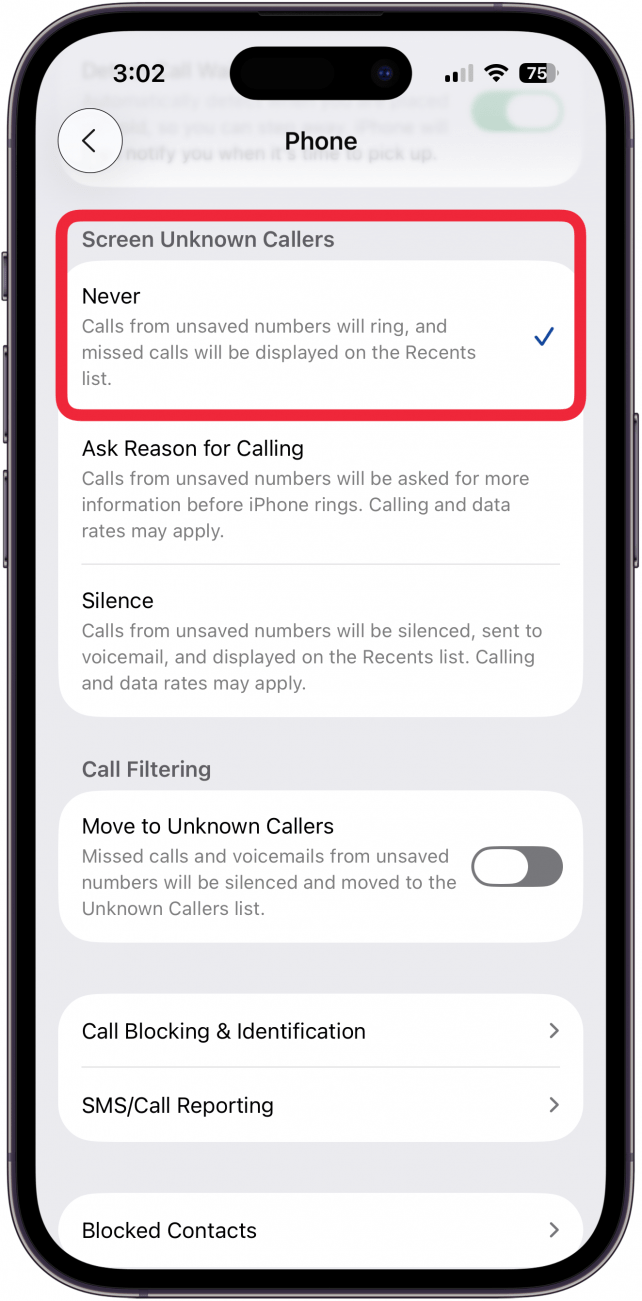
If you want to keep Silence Unknown Callers on on your iPhone, you can add a contact for each number you want to hear from, so they don't go straight to voicemail. If your iPhone keeps sending calls to voicemail, there are a few more things to try.
Check Announce Call Settings
Calls going straight to voicemail without ringing still? There's one more setting to check, the Announce Calls setting. You can have Siri announce your calls always, when you're using headphones or in your car, only when using headphones, or never. I have my Announce Calls feature set to Headphones & Car, because those are my most likely times and locations to miss calls.
Check Your Blocked Numbers
If your iPhone goes right to voicemail only for certain contacts, it's time to check your blocked numbers. When you block someone on your iPhone, they'll hear your phone ring and then be sent to voicemail. You won't hear your phone ring at all, and can only access their blocked voicemail by opening the Phone app, tapping the Voicemail tab at the bottom, then scrolling down and tapping Blocked Messages.
Here's how to see blocked numbers on your iPhone, so you can make sure you didn't accidentally block a contact. If you find that you blocked someone you didn't mean to, it's easy to unblock them.
Reset Network Settings
If a phone call goes straight to voicemail after all the previous steps, it's time to reset your network settings. When you reset network settings on your iPhone, you can solve internet connectivity issues. Resetting network settings can also remove VPN settings and previously used networks that weren't installed by a configuration profile or mobile device management, which may solve the issue of calls going straight to voicemail on your iPhone.
Test Your SIM Card
Do all your calls go to voicemail on your iPhone after all this? If you have an iPhone 13 or older model, it's possible that the issue of calls going straight to voicemail is being caused by a faulty SIM card (the iPhone 14 series and later do not have a physical SIM card). To test if this is the case, remove the SIM card from your iPhone, and insert it into another iPhone. Now, do a few test calls with the iPhone that your SIM is currently in to see if the calls go straight to voicemail. If they do, it's probable that the issue is a faulty SIM card. Contact your cellular service provider to get a replacement SIM card.
Now that you've gone through all these troubleshooting steps, you should receive all incoming calls. iPhone sending calls to voicemail still? Contact your cellular service provider to see if there's an outage. If there's no outage, contact Apple Support to see if your iPhone has a hardware issue that needs to be repaired.
Let us know in the comments if there are any other fixes to the problem of phone calls going straight to voicemail that we didn't cover, and be sure to check out our free Tip of the Day for more great phone and voicemail tutorials.
FAQ
- Can you purposely go straight to voicemail? Some cellular providers allow you to go straight to voicemail when making calls. If someone is calling you, you can send the call straight to voicemail, as well.
- Am I blocked if I call and it goes straight to voicemail? Not necessarily. Learn how to tell if someone blocked you.
- Why is my voicemail not working on my iPhone? You may not have set up voicemail correctly, your carrier settings and iOS may not be current, and there are a few other things to check.
- Why does my phone not ring when I call someone? If your phone is not ringing at all when you make a call, it could be an issue related to your cellular service. If your service has been cut off or if you are out of network range, your iPhone will not ring.

Tamlin Day
Tamlin Day is a feature web writer for iPhone Life and a regular contributor to iPhone Life magazine. A prolific writer of tips, reviews, and in-depth guides, Tamlin has written hundreds of articles for iPhone Life. From iPhone settings to recommendations for the best iPhone-compatible gear to the latest Apple news, Tamlin's expertise covers a broad spectrum.
Before joining iPhone Life, Tamlin received his BFA in Media & Communications as well as a BA in Graphic Design from Maharishi International University (MIU), where he edited MIU's literary journal, Meta-fore. With a passion for teaching, Tamlin has instructed young adults, college students, and adult learners on topics ranging from spoken word poetry to taking the perfect group selfie. Tamlin's first computer, a Radioshack Color Computer III, was given to him by his father. At 13, Tamlin built his first PC from spare parts. He is proud to put his passion for teaching and tech into practice as a writer and educator at iPhone Life.

 Olena Kagui

 Amy Spitzfaden Both


 Brian Peters
 Rachel Needell
 Rhett Intriago
 Leanne Hays
 Susan Misuraca