Private WiFi Address on iPhone: What It Is & How It Works

What to Know
- Private Wi-Fi Address is a feature that prevents your device from being tracked across multiple networks.
- You can enable this feature in the Wi-Fi Settings of both your iPhone, iPad, and Apple Watch.
Privacy is one of the iPhone’s best features. You can rest easy knowing your data is secure, and Private Wi-Fi Address on the iPhone setting makes sure your connection is protected. Let’s go over what exactly this feature does and how you can enable it on your iPhone or iPad.
What Is Private Wi-Fi Address?
Whenever you connect to a Wi-Fi network, your iPhone (and any other Wi-Fi-capable device) uses a Media Access Control (MAC) address to identify itself. If your iPhone uses the same MAC address when connecting to different Wi-Fi networks, that makes your device more easily trackable across connections.
So, what does Private Wi-Fi Address mean? If you enable the Private Wi-Fi Address feature, your iPhone will use a unique MAC address for each network, making it harder to identify you when you switch to a different network. For more iPhone security and privacy advice, check out our free Tip of the Day newsletter.
How to Enable Private Wi-Fi Address on iPhone & iPad
You can enable Private Wi-Fi Address on your iPhone or iPad by going into the Settings app. It can be set up in a matter of minutes and the steps are very similar across iPhone, iPad, and Apple Watch. To learn more, check out our article on what a Privacy Warning on Wi-Fi means. Now, here's how to enable Private Wi-Fi Address on your iPhone:
- Open the Settings app, and tap Wi-Fi.
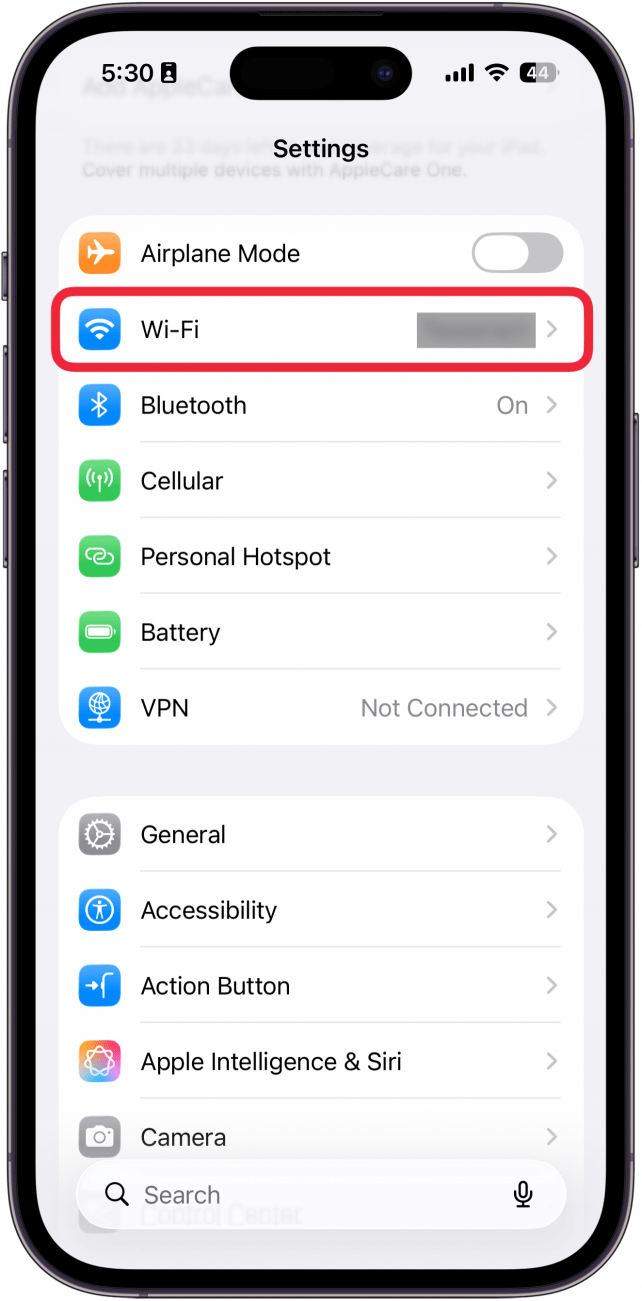
- Tap the info icon next to a Wi-Fi network.
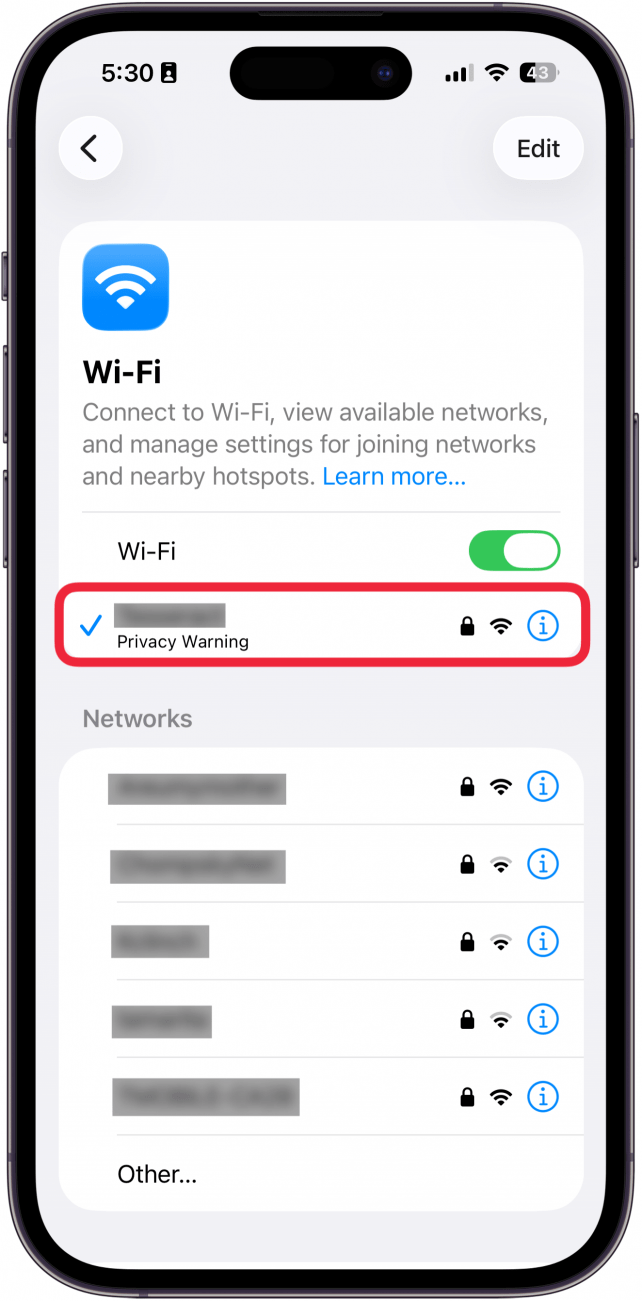
- Tap Private Wi-Fi Address.
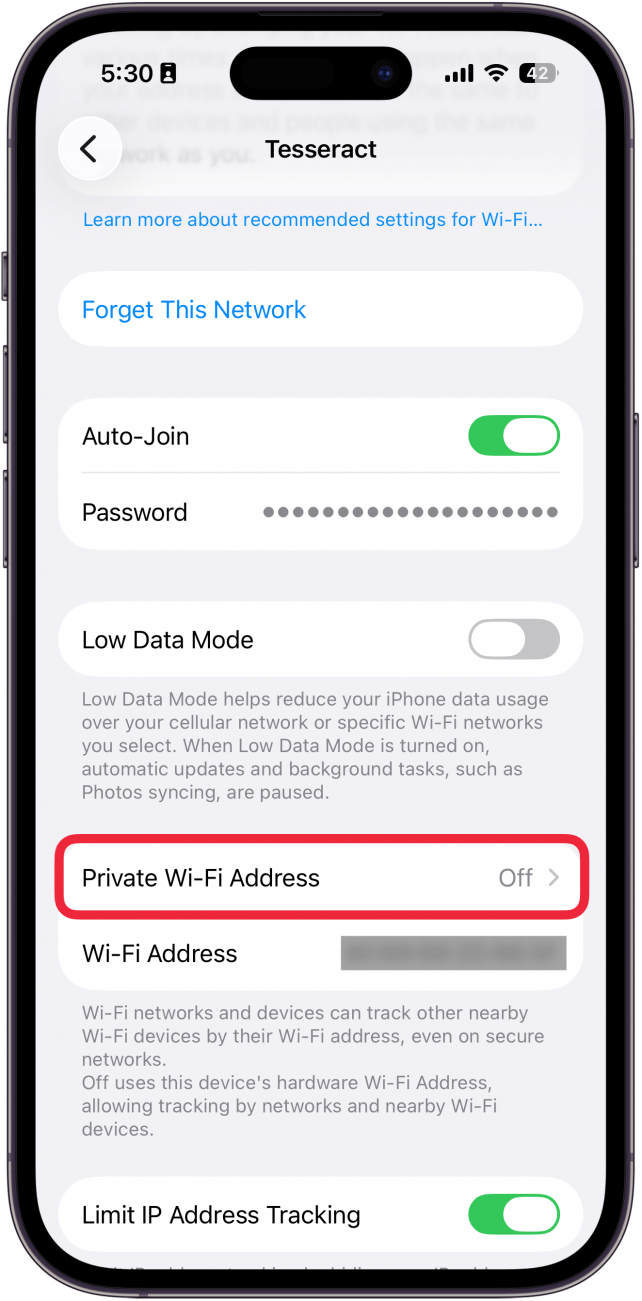
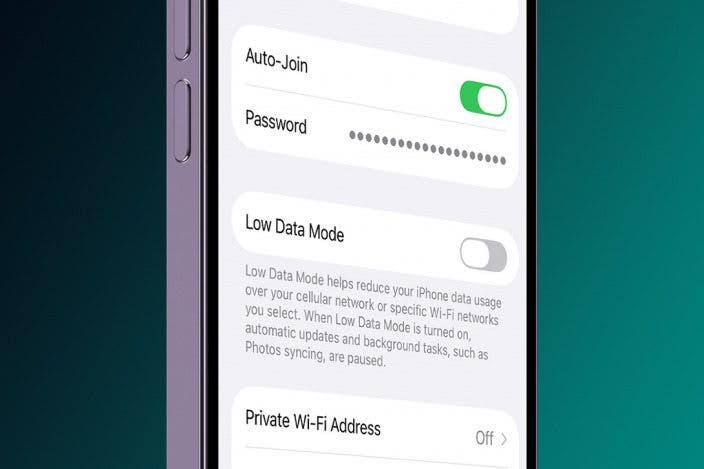
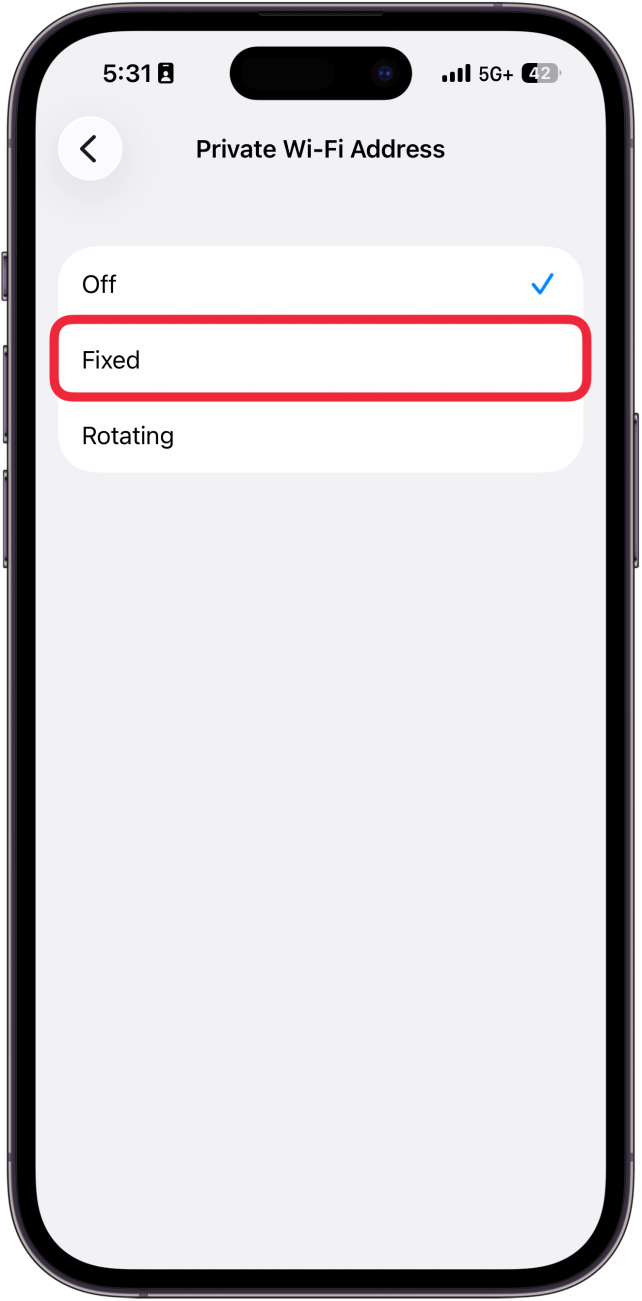
- Choose between Off, Fixed, or Rotating. Fixed means you have a private MAC address but it doesn't change. Rotating means your MAC address changes every two weeks.
Pro Tip
If you see a Privacy Warning on your Wi-Fi, that means you do not have Private Wi-Fi Address enabled.
How to Enable Private Wi-Fi Address on Apple Watch
You can also enable Private Wi-Fi Address on your Apple Watch:
- Open the Settings app, and tap Wi-Fi.
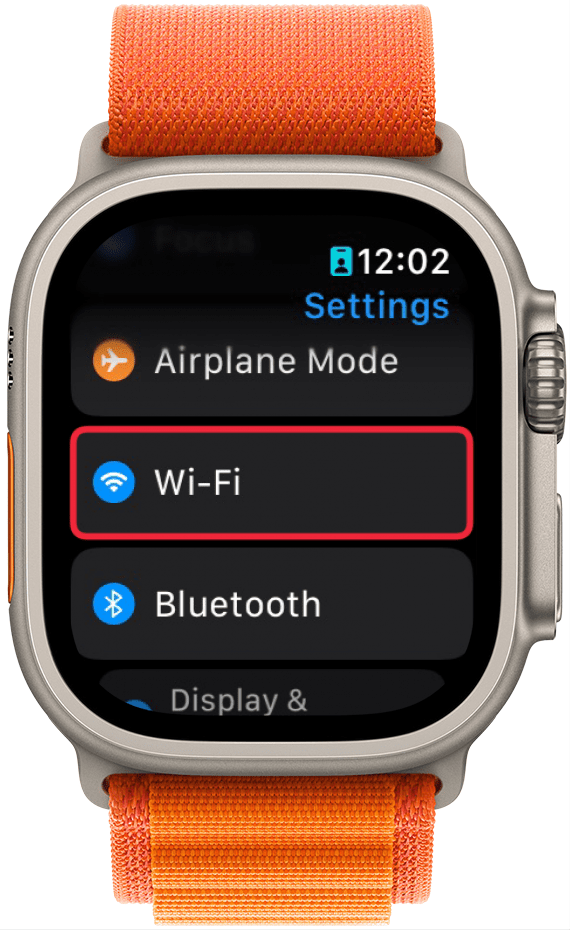
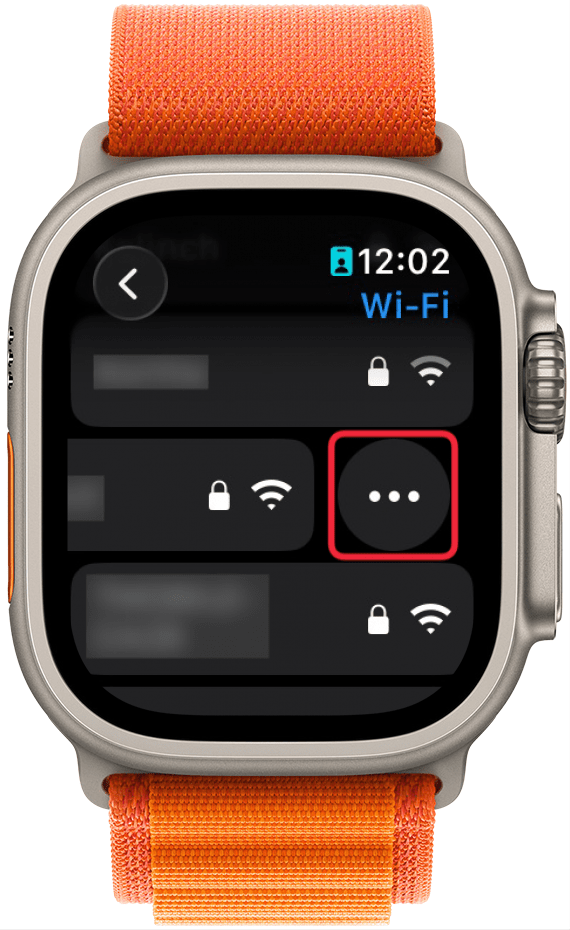
- If your Apple Watch is not already connected to a Wi-Fi network, scroll down and swipe left on a network.
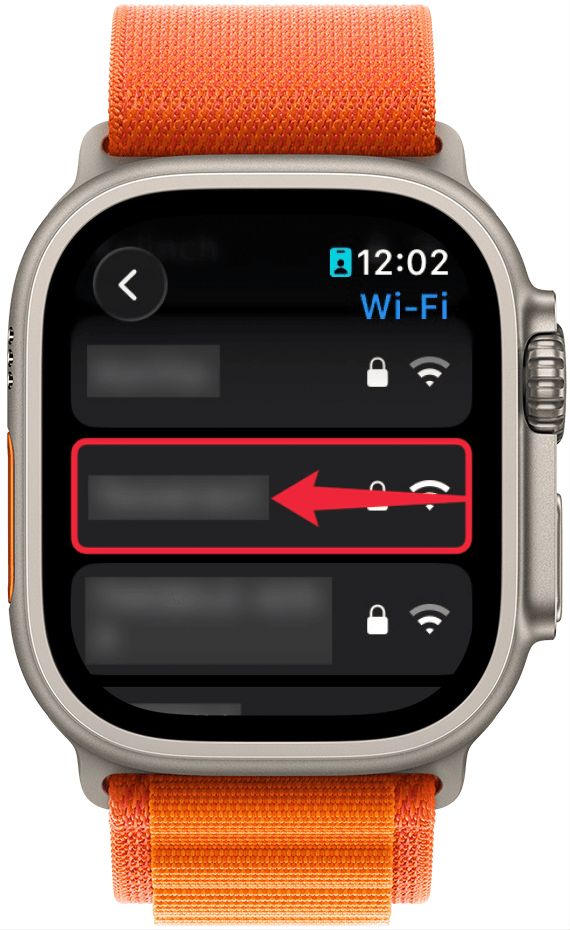
- Tap the three-dot menu button.
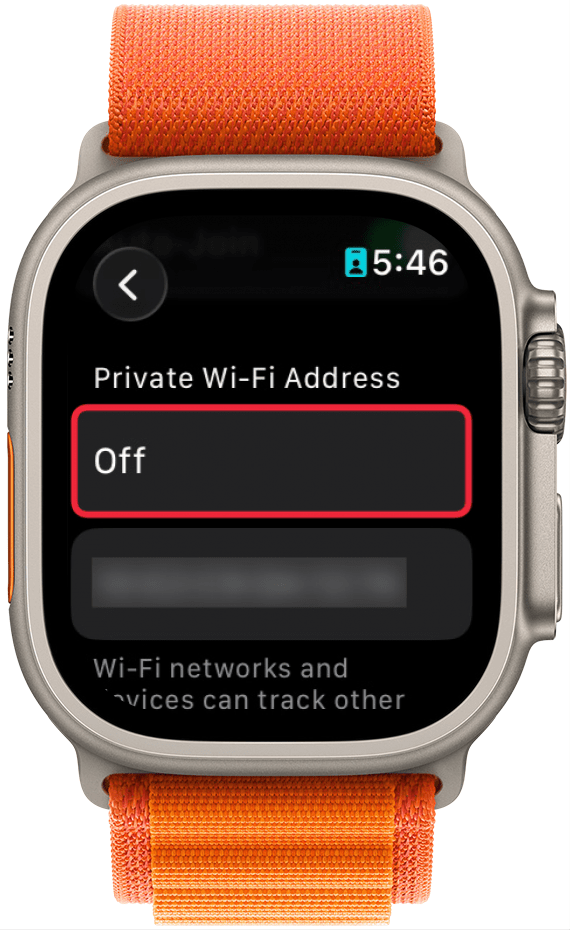
- Scroll down to Private Wi-Fi Address, and tap Off (Note: if you already have Private Wi-Fi Address enabled, this will instead read Fixed or Rotating).
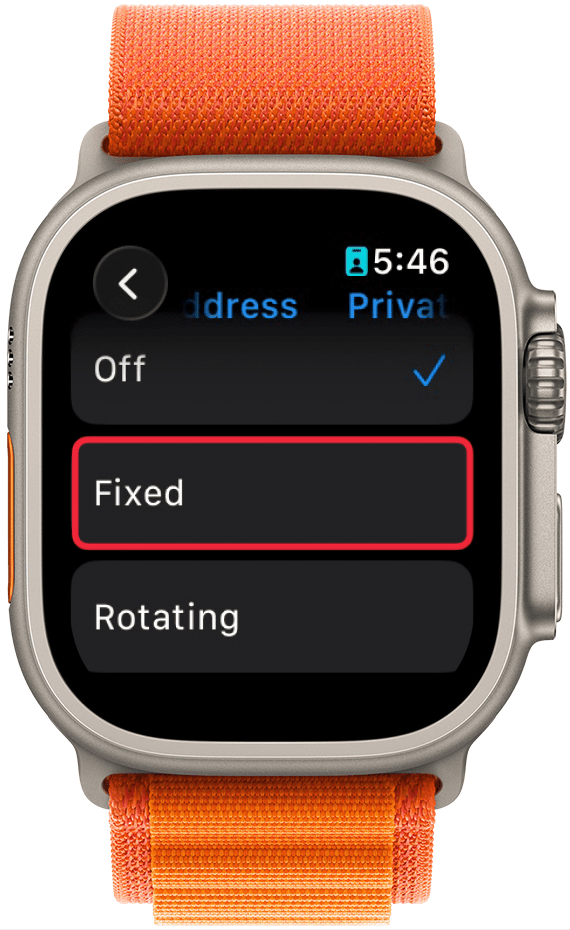
- Select either Fixed or Rotating. I prefer to use a Fixed Private Wi-Fi Address.
Your Apple devices can stay secure no matter which Wi-Fi network you connect to. Now you know how to enable Private Wi-Fi Address on your iPhone and Apple Watch!
FAQ
- Is Private Wi-Fi Address supposed to be turned on? Turning on Private Wi-Fi Address keeps your connection secure without compromising internet speeds. There are no downsides to turning it on and it helps you maintain privacy, so I would say definitely turn it on.
- How to turn off Private Wi-Fi Address? If you need to know how to turn off Private Wi-Fi Address, simply follow the same steps above, and tap the toggle so that it turns gray.
- Should I use Fixed or Rotating Private Wi-Fi Address? If you're wondering about the difference between Private Wi-Fi Address Rotating vs Fixed, we've got answers. A Fixed address means your iPhone will use a different MAC address for each Wi-Fi network it is connected to, but each of those addresses will not change. A Rotating address means your iPhone will use a different MAC address every time it connects to a Wi-Fi network.

Rhett Intriago
Rhett Intriago is a Feature Writer at iPhone Life, offering his expertise in all things iPhone, Apple Watch, and AirPods. He enjoys writing on topics related to maintaining privacy in a digital world, as well as iPhone security. He’s been a tech enthusiast all his life, with experiences ranging from jailbreaking his iPhone to building his own gaming PC.
Despite his disdain for the beach, Rhett is based in Florida. In his free time, he enjoys playing the latest games, spoiling his cats, or discovering new places with his wife, Kyla.
 Leanne Hays
 Olena Kagui
 Rachel Needell

 Amy Spitzfaden Both

 Rhett Intriago

 Susan Misuraca